
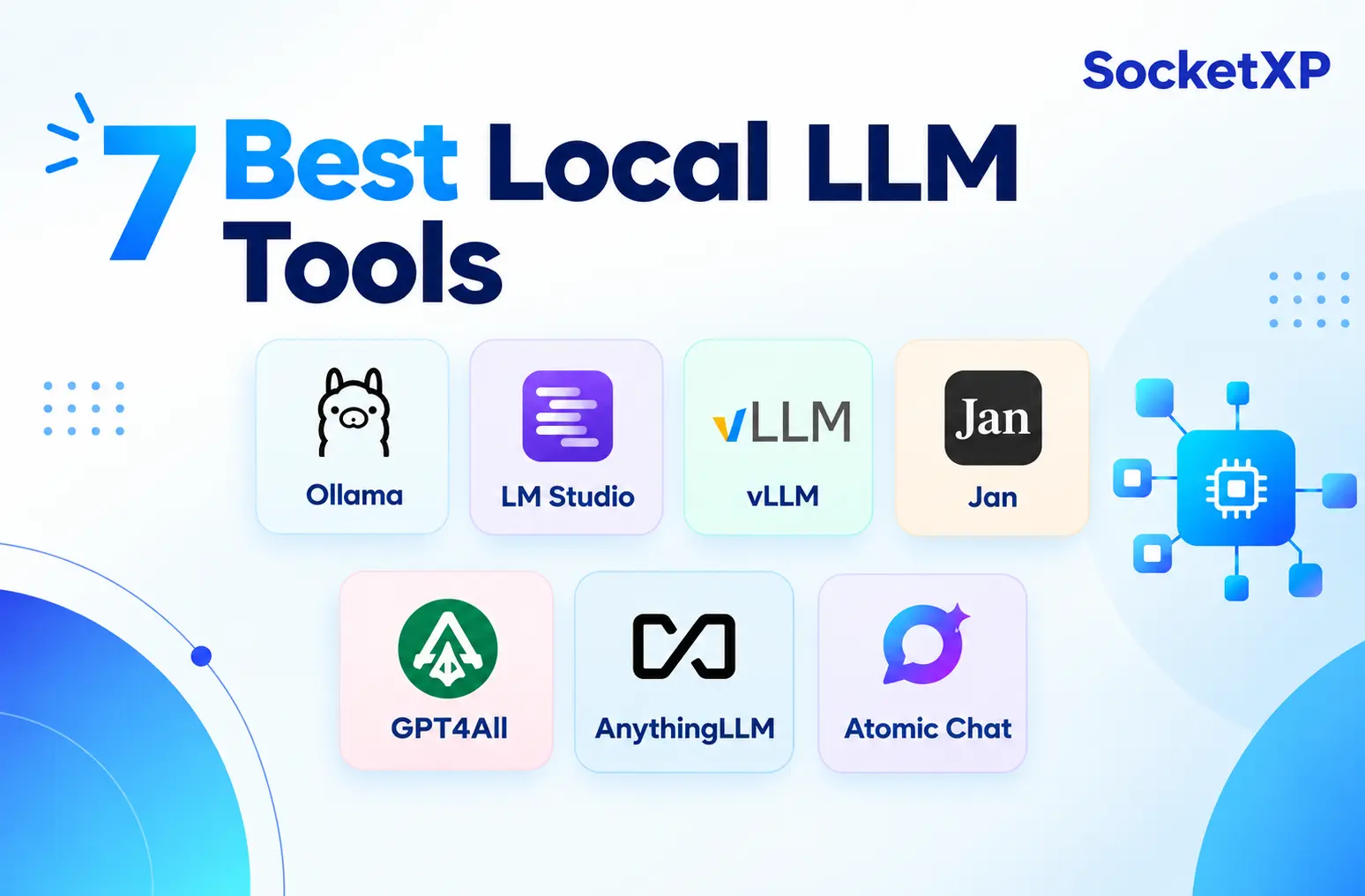
A few years ago, running an AI model on your own computer meant spending a whole afternoon fighting with Python setups and graphics card drivers, just to get one working reply out of it. That’s changed.
Now you can download an app and have a real, working AI model answering your questions offline in about ten minutes. The tools have gotten good enough that the real question isn’t “can I actually do this,” it’s “which one should I pick.”
The Best Local LLM Tool for Every Use Case
- Want the easiest setup? Install Ollama, download a 7-8B model, and you’ll be chatting in under 15 minutes.
- Don’t like using a terminal? LM Studio does the same thing with a simple visual app instead.
- Need to serve a model to a whole team, or an app with real traffic? That’s a job for vLLM, not Ollama.
- Want zero tracking and full transparency? Jan is fully open source, so anyone can check what it’s doing.
- Want to ask questions about your own PDFs? GPT4All’s LocalDocs feature is the quickest way to do that.
- Managing several projects and want a real knowledge base? AnythingLLM’s workspaces make that much easier.
- Want that same private model on your phone too? Atomic Chat is currently the only one here that pulls it off well.
- On hardware: 8GB of RAM gives you a solid assistant, 16GB gets you sharper reasoning, and 64GB or more puts you close to top-tier quality.
- Remotely access your local LLM server from anywhere over the internet using SocketXP AI Gateway without setting up a VPN.
Here’s the longer explanation, with the reasoning behind each pick.
Why Run an LLM Locally in 2026?
The reasons for going local haven’t really changed. But they matter more now, because open models have closed most of the quality gap with the big cloud names:
- Privacy: your prompts, documents, and chats stay on your own device, they never get sent anywhere else.
- No ongoing cost: once you’ve downloaded the model, there’s no per-use bill, ever.
- Works without internet: on a flight, in the field, or anywhere with a bad connection, it still works, because everything happens on your machine.
- Nobody can take it away: a cloud company can change or shut down a model overnight. A model saved on your own computer stays yours for good.
- Faster replies: there’s no trip over the internet and back, and no waiting in line behind other people’s requests.
How We Tested: What Actually Separates a Good Local LLM Tool From a Bad One
We didn’t just compare spec sheets. We looked at what actually matters when you’re using these tools day to day:
- How fast can you go from downloading the app to getting your first answer?
- Can the model actually use tools and call functions correctly, or does it mess this up (a lot of local models do)?
- How many people can use it at the same time? And does it only work on your laptop, or can you use it on your phone too?
Here’s a good example on that tool-calling question. Docker recently tested 21 different models on over 3,500 real tasks, checking if each model knew when to use a tool, picked the right one, and used it correctly. The surprising part: bigger models weren’t automatically better at this. Some mid-size Qwen models actually beat bigger Llama models. Even stranger, a few models built specifically for tool-calling performed worse than regular, general-purpose ones. So don’t assume a model is good at this just because it’s big or popular, check first.
The 7 Best Local LLM Tools, Ranked in 2026
Now that you know why running an LLM locally is worth it, here are the best local LLM tools in 2026, ranked.
1. Ollama: Best Local LLM Tool Overall | Download
Ollama is the tool to try first if you only pick one from this list. Type ollama pull modelname to download a model, then ollama run modelname to start chatting with it. That’s really all there is to it, no config files to touch. You also get a ready-to-use API at localhost:11434, which a lot of other apps plug straight into. In fact, Ollama quietly powers a lot of other tools you may have already heard of, like Open WebUI, various coding plugins, and even some home automation setups.
bash
ollama pull qwen3
ollama run qwen3
The downside shows up once more than one person tries to use it at the same time. Ollama isn’t great at handling lots of requests at once, that’s what vLLM (below) is actually built for.
Also, by default, Ollama only works on your own computer. If you want to use it from your phone, remote computer or let a teammate use it too, you’ll need to set up a VPN or use a secure tunnel first.
SocketXP’s guide on remotely accessing a local LLM server shows you how, without touching your router/firewall settings or configuring a VPN.
2. LM Studio: Best No-Code GUI for Beginners | Download
LM Studio is the one to recommend to someone who’s never touched a terminal and has no plans to start now. Before you download a model, it tells you whether it will actually run on your computer, so you’re not left waiting on a huge file just to find out it doesn’t fit. It also quietly picks the fastest way to run models on your machine. On newer Macs, for example, it switches to Apple’s own MLX engine, which runs 10 to 30 percent faster, and you don’t have to do anything to turn that on.
One thing worth knowing: LM Studio isn’t open source, and it turns on anonymous usage tracking by default. You can switch this off in settings easily enough, but it’s worth checking if privacy is the whole reason you’re going local in the first place.
3. vLLM: Best for Production and Multiple Users | Download
vLLM is the tool built for a job most local LLM articles skip: serving a model to a whole team, or powering an app that gets real traffic, rather than one person on one laptop. Most local LLM articles are written for one person on one laptop, which is why this one gets overlooked more often than it should be.
vLLM’s secret sauce is something called PagedAttention. In plain terms, it manages your GPU’s memory more efficiently, sharing it between requests instead of locking up a fixed chunk for every single one.
The difference this makes is huge, not small. In one independent test, running the same 8B model on the same GPU, vLLM handled roughly 15 to 20 times more requests than Ollama at the same time. The trade-off is that it only works with NVIDIA GPUs, is built mainly for Linux, and has no visual app at all, so it takes real setup work.
bash
pip install vllm
vllm serve meta-llama/Llama-3.3-70B-Instruct --port 8000
If you’re running it on your own server at home, SocketXP’s Linux server remote access guide can help you reach it safely from outside your network.
4. Jan: Best Fully Open-Source, Privacy-First Local LLM App | Download
Jan looks a lot like ChatGPT, but it’s built on llama.cpp and made by an independent lab, not a company that needs your data to make money. It’s fully open source, so anyone can actually check what it’s doing under the hood. If privacy and transparency matter more to you than pure speed, this is a solid choice.
One neat feature: you can switch between a local model and a cloud model like Claude or GPT in the middle of the same conversation, without ever leaving the app. The downside is that Jan doesn’t add any extra speed tricks on top of llama.cpp, so on the exact same hardware, it can feel a little slower than some of the other tools here.
5. GPT4All: Best for Chatting With Your Own Documents | Download
GPT4All has been around longer than most tools on this list, and its LocalDocs feature is still one of the easiest ways to ask questions about your own PDFs or Word documents. You just point it at a folder, no extra setup needed. It also plays nicer with older AMD graphics cards than most other tools bother to support.
Where it falls short: it’s really built for one person chatting with their own files. If you need it to power an app through an API, or serve other people, this isn’t the right tool for that.
6. AnythingLLM: Best for Building a Real Knowledge Base | Download
AnythingLLM is a good next step up once you have more than just a handful of documents. It pairs a local model with a proper database built for searching your files, called a vector store, and it keeps different projects in their own separate “workspaces.” So your legal documents and your code notes stay apart, instead of accidentally getting mixed together.
It does have more moving parts than a simple chat app, so it’s overkill if all you want is quick answers. But if you actually want to build a real knowledge base, it’s the strongest option on this list.
7. Atomic Chat: The Best Local LLM App for Mobile and Cross-Platform Use | Download
Every other tool on this list only works on a laptop or desktop. Atomic Chat is different, it has real apps for macOS, Windows, Linux, iOS, and Android, and all of them run models fully offline, phone included. It also has its own tricks for shrinking models so they fit into less memory, and it can connect to apps like Gmail and Slack.
Because those memory-saving tricks are unique to Atomic Chat, there isn’t as much community help or documentation for it yet compared to a tool as established as Ollama. But if a private AI model on your phone is what you actually want, nothing else on this list gets you there.
A Few Other Tools Worth Knowing About
Three more names come up a lot in this space, and while they didn’t make the top 7, they’re worth knowing:
- Unsloth isn’t really a chat app, it’s the outfit behind most of the compressed model files (GGUF quants) that Ollama, LM Studio, and everything else on this list actually download and run. If you ever wonder where a “4-bit” version of a model comes from, it’s usually them. They also now ship their own local run-and-train interface.
- text-generation-webui is the most flexible option out there, tons of extensions, support for almost every backend. It’s been around for years and has a loyal following, but the sheer number of settings can be overwhelming if you just want to chat.
- LocalAI is aimed squarely at developers who want a drop-in, self-hosted replacement for the OpenAI API, useful if you’re already building against that API and want to swap in a local model without rewriting your code.
Local LLM Tools Compared: Side-by-Side Breakdown
| Feature | Ollama | LM Studio | vLLM | Jan | GPT4All | AnythingLLM | Atomic Chat |
|---|---|---|---|---|---|---|---|
| Interface | CLI + API | GUI | API only | GUI | GUI | GUI | GUI |
| Mobile | No | No | No | No | No | No | Yes |
| Concurrent users | Low to medium | Low | High | Single user | Single user | Low | Single user |
| Open source | Yes | No | Yes | Yes | Yes | Yes | Yes |
| Setup difficulty | Very easy | Very easy | Moderate to hard | Easy | Very easy | Moderate | Very easy |
Best Local LLM Models by Hardware: A RAM and VRAM Guide
Picking the right tool is only half the job. The model itself also needs to fit in your computer’s memory, RAM or VRAM. If it doesn’t fit, your computer falls back on the hard drive instead, and everything slows down a lot.
Here are real, current picks for each memory size, all confirmed available as 4-bit GGUF downloads (mostly from Unsloth, since that’s who quantizes almost everything):
| Your hardware | Model to run | Size (4-bit) | Good for |
|---|---|---|---|
| 8GB RAM, no GPU | Gemma 4 E4B, Qwen3 8B | 5–6GB | Everyday assistant use, drafting, Q&A |
| 16GB RAM | Gemma 4 31B Dense, Qwen3 14B | 10–18GB | Noticeably sharper reasoning, still fast |
| 24GB VRAM (one GPU) | Qwen3 32B, DeepSeek-R1 32B-class | 19–20GB | Strong coding and reasoning |
| 32 to 64GB unified/RAM | Gemma 4 26B-A4B , Qwen3.6-35B-A3B | 17–23GB | Best quality per GB most people will get |
| 64 to 128GB (Mac Studio or similar) | Qwen3-Coder-Next , gpt-oss-120b | 46–66GB | Near-frontier quality, tool calling, long context, agentic coding |
| Multi-GPU server, 128GB+ | Qwen3.5-122B-A10B , Nemotron 3 Super 120B-A12B , DeepSeek-V4-Flash | 64–135GB | Production serving via vLLM, huge context windows |
If you plan to use your model for multi-step coding tasks, Qwen3-Coder-Next was purpose-built for exactly that and is worth trying first. A general chat model that “also does code” tends to fall apart once the task gets more complex than a single question. And a quick note on freshness: model names and sizes at the top end shift fast, if you’re reading this more than a few months after it was published, it’s worth checking Unsloth’s model page for whatever’s newest before you download.
LM Studio vs Ollama vs GPT4All: Which One Should You Actually Install?
People ask this a lot, so here’s a straight answer. Choose Ollama if you’re comfortable with a terminal and want to build things using an API. Choose LM Studio if you want a visual app with zero command line, and don’t mind that it’s closed source. Choose GPT4All if you mainly want to chat with your own PDFs and want the easiest setup possible. None of the three is really “better” than the others, they’re just made for different comfort levels with a terminal.
Final Verdict: The Best Local LLM Tool for You
If you’re a developer, start with Ollama. If you’d rather click buttons than type commands, go with LM Studio. Once more than a couple of people need to use the same model at the same time, switch to vLLM. And if you want the same private model on both your laptop and your phone, Atomic Chat is currently your only real option.
Whichever one you pick, running it locally is only step one. The moment you want to check on it from your phone, hand it to a teammate, or use it from a device that isn’t the one it’s installed on, you’ll need a way to reach it securely. That’s the exact problem SocketXP is built to solve, take a look at their remote access solutions to see how to connect to your setup from anywhere, without opening a single port on your router.
Frequently Asked Questions
What is a local LLM?
It's an AI language model that runs on your own computer instead of on a company's servers. You download the model once, load it into one of the apps above, and after that, everything happens on your device. You don't even need internet access to use it.
Do I need a GPU?
No, you don't. Smaller models run fine using just your computer's processor, you'll just get replies a bit slower. Your RAM decides whether a model can run at all. A GPU mainly just makes it run faster.
Can a local model replace ChatGPT or Claude?
For everyday writing, summarizing, and most coding help, yes, it can, and you get full privacy as a bonus. For the hardest problems, or when you need to work with huge amounts of text at once, cloud models like ChatGPT or Claude are still ahead. That's why a lot of people use both, picking whichever fits the task.
Which local model is best for coding?
If you have a 24GB graphics card, or a Mac with 32GB of memory or more, go with Qwen3.6-27B. It's a smaller model, just 27 billion parameters, but it scores 77.2% on SWE-bench Verified, a tough coding test. That's actually better than Alibaba's own much bigger 397B model. And it only needs about 17GB of memory to run. If your computer is lighter on power, try Devstral Small 2 instead (24B, made by Mistral). It scores 68% on the same test, was built specifically for coding tasks that use tools, and runs fine on a single graphics card like an RTX 4090. Whichever one you pick, use it together with a plugin in your code editor. Don't expect a general chat model to handle your whole coding workflow by itself, it's just not built for that.
Are local LLMs actually private?
Yes, when it comes to running the model, nothing leaves your machine. The one thing worth checking is the app itself. Fully open-source, telemetry-free tools like Ollama, Jan, and GPT4All can be checked by anyone to confirm this. A couple of other apps do quietly send anonymous usage data by default, so it's worth glancing at their settings.
How do I reach my local LLM from another device?
By default, these tools only work on the same computer they're installed on. To remotely access these local LLM tools, use a secure tunnel. A secure tunnel lets you to connect from another machine without opening ports on your router or exposing your whole home or office network to the internet or setting up a VPN connection. SocketXP has a step-by-step guide for remotely accessing local Ollama, vLLM, and LM Studio that covers two setups: 1) a quick public web URL for quick testing, or 2) a private endpoint through their AI Gateway for production, if you'd rather want your model server never be exposed to the public internet at all, and every request has to carry a valid access key for authentication. The second option is the better fit for anything beyond quick testing on your own.