
AI and machine learning workloads demand serious hardware—GPUs with large VRAM, fast storage for datasets, and plenty of RAM for model training. Many researchers and engineers build their own GPU workstations or home lab servers rather than paying ongoing cloud GPU costs.
The challenge: that powerful machine sits in your home or office behind a router. You cannot reach it from your laptop at a coffee shop, from a client site, or while traveling. Standard solutions like port forwarding are insecure and require a static public IP. VPNs are complex to set up and maintain.
This guide shows how to remotely SSH into any GPU server or AI workstation from anywhere using SocketXP Remote Access Solution—with no router changes, no public IP, and no VPN.
Common Scenarios
- Home lab GPU workstation: Your machine with an RTX 3090/4090 is at home. You need to SSH in from the office to check a training job or kick off a new run.
- University server: You have access to a department GPU server but can only reach it from on-campus. You need remote access from home.
- Multi-GPU training server: A dedicated Linux server running PyTorch or TensorFlow training jobs that you want to manage remotely.
- AI edge server: A small form-factor Linux machine with a discrete GPU used for inference that you want to manage without being on-site.
How SocketXP GPU Server Remote Access Works
SocketXP works in three steps:
- Install the lightweight SocketXP agent on your GPU server.
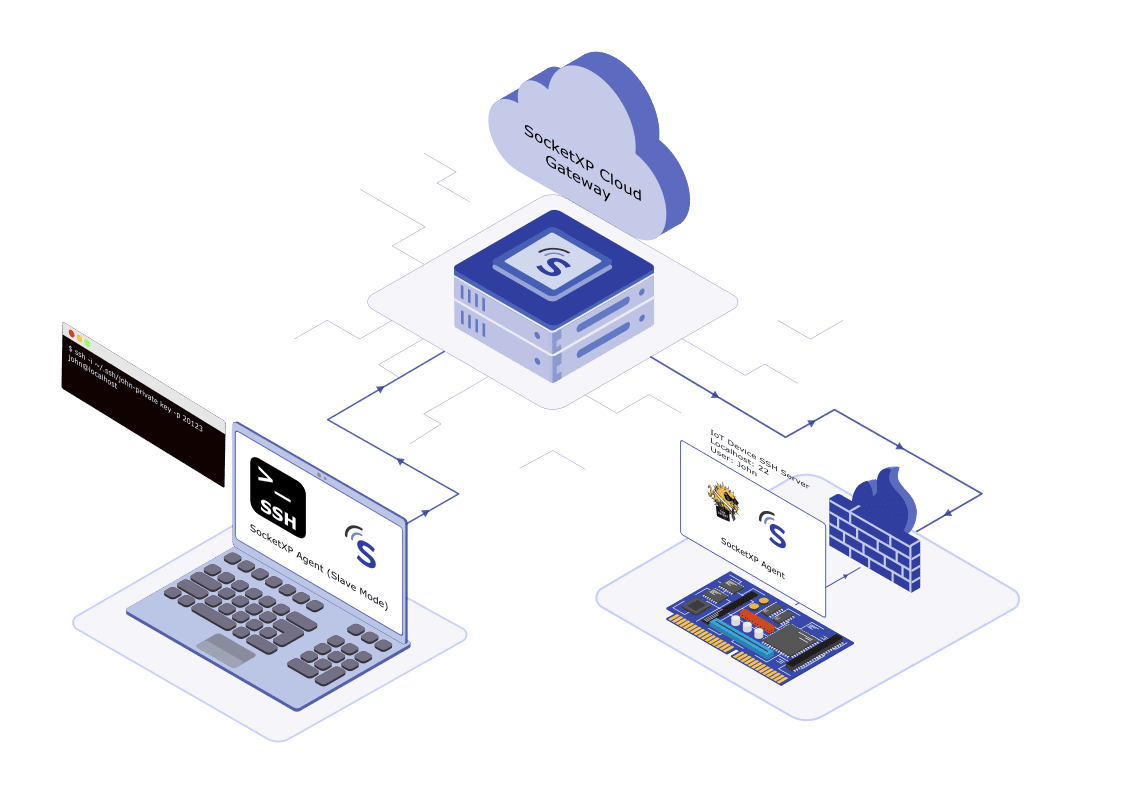
- The agent creates a secure outbound SSL/TLS tunnel to the SocketXP Cloud Gateway—no inbound ports are opened.
- SSH into the server from anywhere via the SocketXP web terminal (browser) or your preferred SSH client using SocketXP’s slave mode.
Because the agent only makes outbound connections, your home router or corporate firewall never needs to be configured to allow inbound SSH traffic. Port scanners and attackers on the internet see nothing—there is no open port on your network.
Step-by-Step: Set Up Remote SSH Access to Your GPU Server
Step 1: Verify SSH Is Running on Your GPU Server
On your Linux GPU server (Ubuntu, Debian, etc.):
$ sudo systemctl status ssh
● ssh.service - OpenBSD Secure Shell server
   Loaded: loaded (/lib/systemd/system/ssh.service; enabled)
   Active: active (running)
If SSH is not installed:
$ sudo apt-get install openssh-server
$ sudo systemctl enable ssh
$ sudo systemctl start ssh
Step 2: Install the SocketXP Agent on the GPU Server
Download and install the SocketXP agent on the GPU server. Use the one-line install command available in the SocketXP portal.
Step 3: Get Your Authentication Token
Sign up at the SocketXP Web Portal and copy your authentication token.
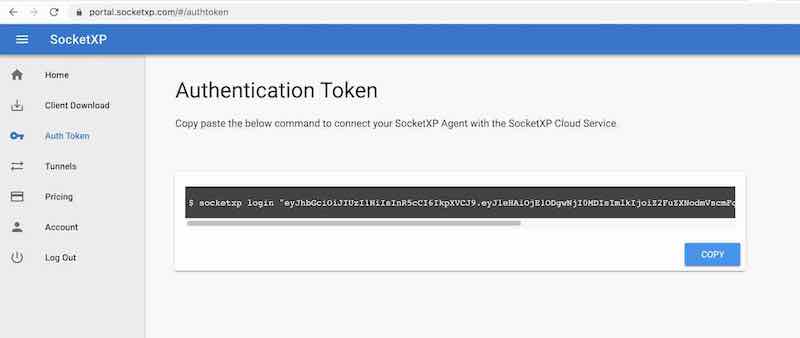
Authenticate the agent:
$ socketxp login "eyJhbGciOiJIUzI1NiIsInR5cCI6IkpXVCJ9..."
Step 4: Create the SSH Tunnel
$ socketxp connect tcp://localhost:22

Connected to SocketXP Cloud Gateway.
Access the TCP service securely using the SocketXP agent in Slave Mode.
The GPU server is now registered with the SocketXP Cloud Gateway. The SSH port is accessible only through SocketXP—it is not exposed to the public internet.
Step 5: SSH into Your GPU Server from Anywhere
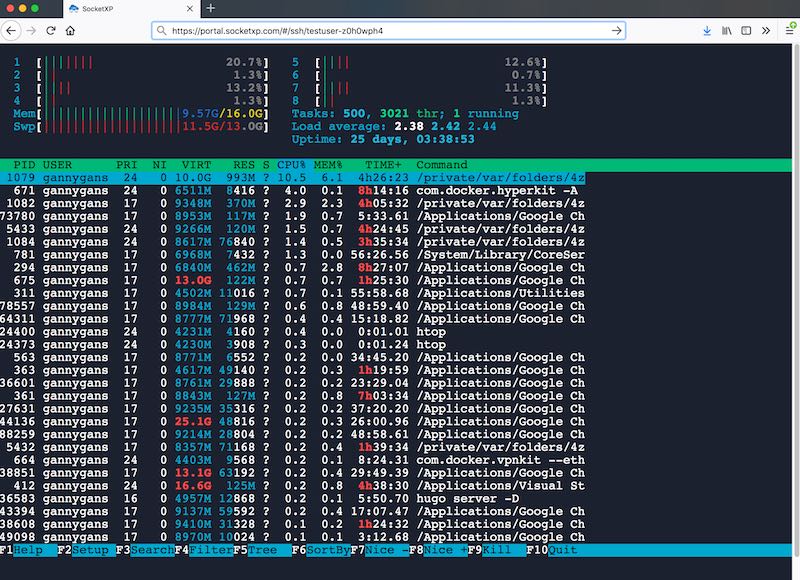
Option A — Browser-based terminal (no client software needed)
Open portal.socketxp.com in your browser, find your GPU server in the Devices list, and click Connect. A full SSH terminal opens in the browser tab.
Option B — Use your preferred SSH client (PuTTY, OpenSSH)
Install the SocketXP agent on your laptop and run it in slave mode to forward the remote SSH port to a local port:
$ socketxp connect tcp://localhost:2222 \
    --iot-slave \
    --peer-device-id "your-gpu-server-device-id" \
    --peer-device-port 22 \
    --authtoken "your-auth-token"

Listening for TCP connections at:
Local URL -> tcp://localhost:2222
Find the device ID of your GPU server in the SocketXP Portal Devices page.
Then SSH into it using the local port:
$ ssh user@localhost -p 2222
Or with PuTTY: connect to localhost, port 2222.
Transferring Files to and from Your GPU Server
Once you have SSH access, you can use SFTP or SCP to move files:
Upload a dataset or model file:
$ scp -P 2222 dataset.tar.gz user@localhost:/home/user/data/
Download model checkpoints or results:
$ scp -P 2222 user@localhost:/home/user/runs/model_best.pt ./
You can also use FileZilla or WinSCP pointed at localhost:2222 for a graphical file browser.
Access Jupyter Notebooks Running on Your GPU Server
If you run Jupyter Notebook or JupyterLab on your GPU server, create a second SocketXP tunnel for the Jupyter port:
# On the GPU server, start Jupyter
$ jupyter notebook --no-browser --port=8888

# In a second terminal on the GPU server, create the Jupyter tunnel
$ socketxp connect http://localhost:8888
Public URL -> https://your-user-id-abc123.socketxp.com
Open the public URL in any browser to access GPU-accelerated Jupyter notebooks from anywhere. See our full guide on Remote Access Jupyter Notebook from Anywhere for details.
Security: Why SocketXP Is Safer Than Port Forwarding
Port forwarding your SSH port (22) to the internet is the most common approach—and the most dangerous. It means:
- Any machine on the internet can attempt to connect to your SSH port.
- Automated bots continuously scan for open SSH ports and try brute-force attacks.
- Even strong passwords offer limited protection against persistent automated attacks.
With SocketXP:
- No port is exposed to the internet. Port scanners see nothing on your network.
- Access is gated by your SocketXP account credentials. Connections go through the SocketXP Cloud Gateway, which handles authentication.
- Optional two-factor authentication (2FA) via SSO (Google Workspace, Microsoft 365) is supported for additional security.
- SSH public key management: SocketXP automates SSH key creation and cleanup, using short-lived keys for each session so there are no persistent keys to steal.
Monitor Your GPU Server Remotely
Once SocketXP is installed, you can also use its monitoring features to watch your GPU server:
- CPU, memory, and disk alerts: Get webhook notifications if resource usage exceeds your thresholds—for example, if a training job fills the disk.
- Process monitoring: Alert if a training process crashes unexpectedly.
- Log monitoring: Watch training logs for error patterns and get notified immediately.
See the SocketXP IoT Remote Monitoring page for details.
Conclusion
SocketXP gives you secure, permanent SSH access to your GPU server or AI workstation with a single command—from anywhere in the world, on any internet connection. Install the agent, run socketxp connect tcp://localhost:22, and your machine is reachable through the SocketXP portal or your preferred SSH client. No public IP, no router configuration, no VPN.
For more details, visit the SocketXP IoT Remote Access page or the Getting Started guide.
Frequently Asked Questions
Can I SSH into a home lab GPU server without a public IP or port forwarding?
Yes. SocketXP installs a lightweight agent on the GPU server. The agent creates an outbound SSL/TLS tunnel to the SocketXP Cloud Gateway. You can then SSH into the server from anywhere using the SocketXP web terminal in your browser—no public IP, no port forwarding, and no VPN required.
Does remote GPU server access work through a corporate firewall?
Yes. The SocketXP agent makes an outbound HTTPS connection on port 443, which corporate firewalls almost universally allow. No inbound firewall rules need to change.
Can I access a GPU server on a 4G/5G cellular or Starlink connection?
Yes. SocketXP works on any internet connection including 4G/5G cellular and Starlink satellite. Carrier-grade NAT (CGNAT), which is common on mobile networks and makes devices unreachable via port forwarding, is not a problem for SocketXP because the agent always makes outbound connections.
Is it safe to expose my GPU server for remote SSH access?
SocketXP does not create any publicly exposed port on your server. The SSH port is never visible to port scanners or the public internet. Access is only possible through the SocketXP cloud gateway, protected by your SocketXP account credentials and optional two-factor authentication.
Can I transfer files to and from my remote GPU server?
Yes. You can use SFTP or SCP over the same SocketXP SSH tunnel to transfer training datasets, model checkpoints, result files, and logs between your laptop and the GPU server.
Can I run GPU-accelerated Jupyter Notebooks on my remote GPU server?
Yes. SSH into the server, start Jupyter with 'jupyter notebook --no-browser --port=8888', then create a second SocketXP tunnel for the Jupyter port: 'socketxp connect http://localhost:8888'. This gives you a public URL to access the GPU-backed notebook from any browser.
Can I use VS Code Remote SSH to connect to my GPU server via SocketXP?
Yes. Configure the SocketXP agent in slave mode on your laptop to create a local TCP endpoint that forwards to your GPU server's SSH port. Then add that local endpoint as an SSH host in VS Code Remote SSH. You get full VS Code remote development on your GPU machine.
How do I access a deep learning server at a university or research institution remotely?
University GPU servers are often behind institutional firewalls that block inbound connections. SocketXP's agent makes an outbound HTTPS connection on port 443, which institutional firewalls almost always allow. Install the agent on the GPU server, create the SSH tunnel, and access it from anywhere—home, another campus, or while traveling—without needing IT to open firewall ports.
How do I check my GPU utilization or monitor a training job on my remote server?
SSH into your GPU server via the SocketXP portal or slave mode, then run 'nvidia-smi' to check real-time GPU utilization, memory usage, and running processes. For continuous monitoring during a training run, use 'watch -n 1 nvidia-smi' in one SSH session and 'tail -f training.log' in another to watch both GPU stats and training progress simultaneously.
Can I attach to a running tmux or screen session on my remote GPU server via SocketXP?
Yes. SSH into your GPU server via SocketXP (browser terminal or slave mode), then run 'tmux attach' or 'screen -r' to re-attach to an existing session. This lets you resume a training run or long-running process that you left running—exactly as if you never disconnected.
How do I access a remote GPU server from a Windows laptop?
Download and install the SocketXP agent on your Windows laptop, configure it in slave mode to forward the remote GPU server's SSH port to a local port (e.g., localhost:2222), and then connect using PuTTY or the built-in Windows OpenSSH client ('ssh user@localhost -p 2222'). Alternatively, open the SocketXP portal in any browser for instant access without installing any SSH client.
Can I remotely kill or restart a stuck training job on my GPU server?
Yes. SSH into the server via SocketXP and use standard Linux process management: 'ps aux | grep python' to find the training process, then 'kill
' to stop it. You can also restart a systemd-managed training service with 'sudo systemctl restart training.service'. The SocketXP web terminal in the browser works for this with no client software required.