
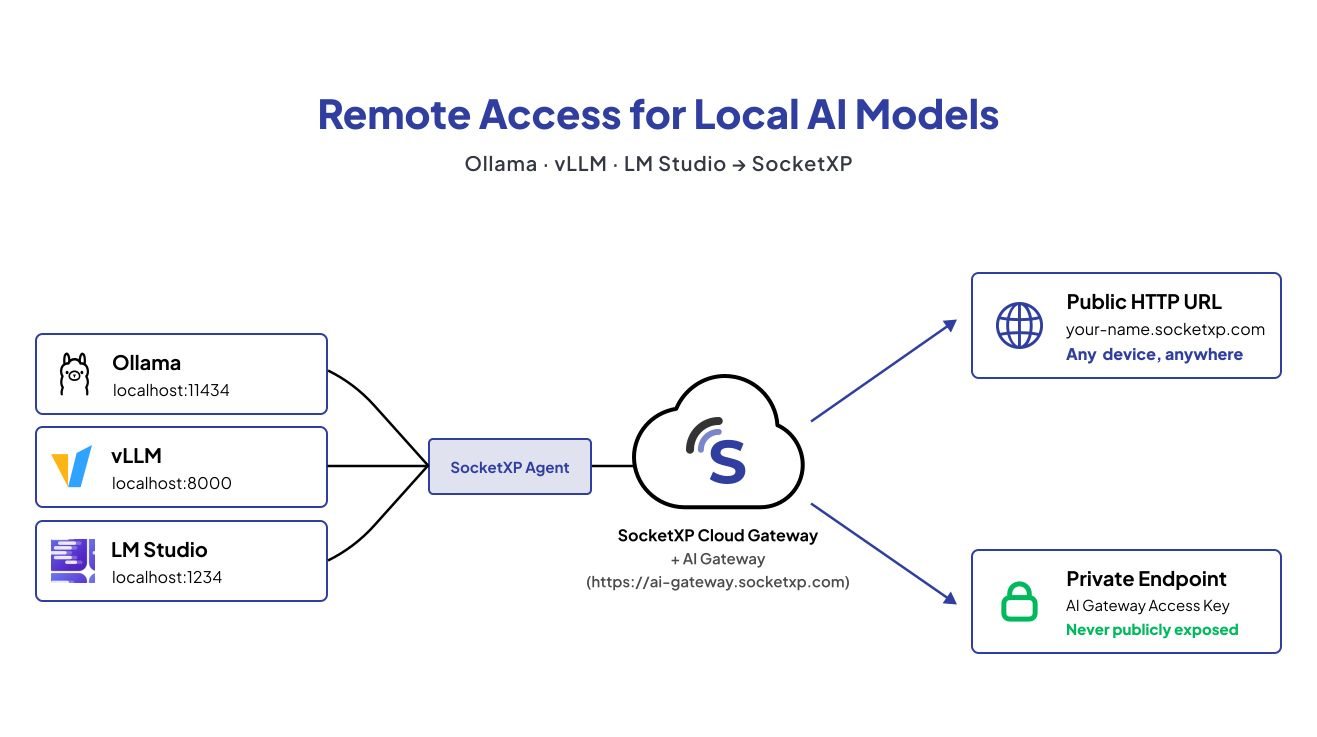
Ollama, vLLM, and LM Studio let you run large language models (LLMs) like Llama 3, Mistral, Gemma, and Phi locally on your own hardware — no cloud subscription, no data leaving your machine, complete privacy.
The problem: these local AI servers listen on localhost by default — Ollama on port 11434, LM Studio on port 1234, vLLM’s OpenAI-compatible server on port 8000 — which means only software running on the same machine can reach them. The moment you want to query your local LLM from your phone, a second laptop, a teammate’s machine, or a remote application in a cloud server, you hit a wall.
This guide shows you how to use SocketXP Remote Access Solution and SocketXP AI Gateway to expose your Ollama, vLLM, or LM Studio server to the internet using either of two methods:
- A permanent public HTTPS URL — without port forwarding, without a VPN, and without touching your router settings.
- A private internal endpoint and an access key, accessible only through the SocketXP AI Gateway at
https://ai-gateway.socketxp.com— your model server is never directly exposed to the internet, and every request is authenticated.
Why Access Your Local AI Models Remotely?
- Use your local LLM from any device: Query your models from a phone, tablet, or any laptop without being on the same WiFi.
- Build applications that call your private LLM: Connect web apps, mobile apps, or scripts running on other machines to your Ollama, vLLM, or LM Studio API.
- Share with teammates: Let collaborators query your models without setting up their own hardware.
- Avoid cloud API costs: Keep workloads on your local GPU instead of paying per token to a cloud provider.
Recommended Reading: 7 Best Local LLM Tools in 2026 (Hands-On Comparison)
Two Ways to Reach Your Local AI Server Remotely
SocketXP supports two different ways to make a local AI model server reachable from outside your network:
Method 1 — Public HTTPS URL. SocketXP assigns your tunnel a permanent public subdomain (e.g., https://your-user-id.socketxp.com). It’s the fastest way to get started — one command, no portal configuration — and works well for personal use or quick testing. Anyone who has the URL can reach your server, so treat it like a secret.
Method 2 — Private Endpoint + SocketXP AI Gateway. Instead of a public subdomain, you create a private internal endpoint that is never assigned a public address. Access happens only through https://ai-gateway.socketxp.com, authenticated with an AI Gateway access key. This is the better option when you want your model server to stay completely unexposed to the internet, need access-key authentication instead of relying on URL secrecy, or want to route multiple local providers (Ollama, vLLM, LM Studio) through a single OpenAI-compatible endpoint.
Both methods are covered step-by-step below.
How It Works
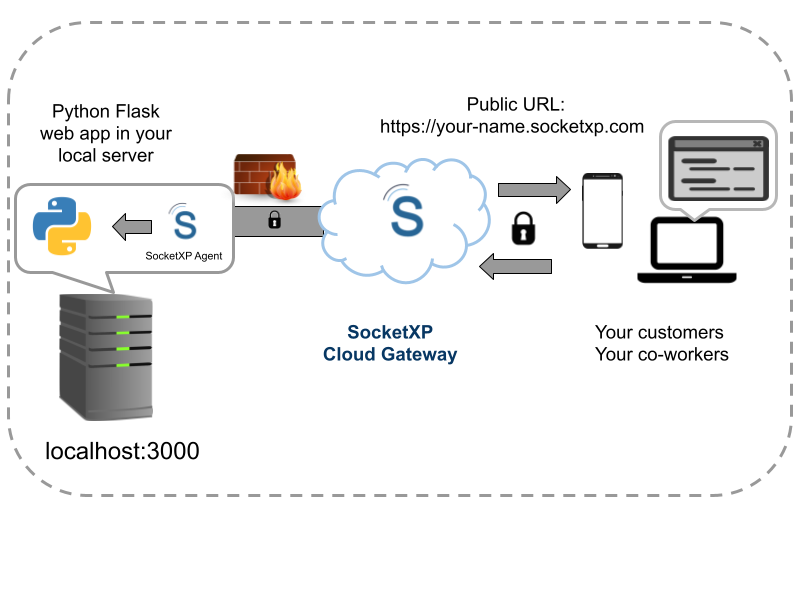
Ollama, vLLM, and LM Studio each start a REST API server on localhost. SocketXP installs a lightweight agent on the same machine and creates a secure outbound SSL/TLS tunnel to the SocketXP Cloud Gateway — so your router never needs to be configured to allow inbound traffic. This also works through corporate firewalls, 4G/5G cellular networks, and Starlink satellite connections.
From there, the two methods diverge:
- For a public URL, SocketXP assigns a permanent HTTPS address to the tunnel. Any HTTP request sent to that URL is forwarded through the tunnel to your local model server, and the response travels back the same way.
- For a private endpoint, no public address is assigned at all. Requests can only reach your model server by going through the AI Gateway (
https://ai-gateway.socketxp.com) with a valid access key, which the gateway validates before routing traffic to your private tunnel.
Method 1: Public HTTPS URL — Step-by-Step
Step 1: Start Your Local AI Server
Ollama (default port 11434)
$ ollama serve
2025/01/01 10:00:00 Listening on 127.0.0.1:11434 (version 0.x.x)
vLLM OpenAI-compatible server (default port 8000)
$ vllm serve meta-llama/Meta-Llama-3-8B-Instruct
For LM Studio: start the local server from the LM Studio app (default port 1234)
Verify it is running locally, e.g. for Ollama:
$ curl http://localhost:11434
Ollama is running
You do not need to change OLLAMA_HOST, vLLM’s --host, or LM Studio’s server settings. SocketXP connects to localhost, which each of these servers already listens on.
Step 2: Install the SocketXP Agent
Download and install the SocketXP agent on the machine running your AI model server.
Step 3: Get Your Authentication Token
Sign up at the SocketXP Web Portal and copy your authentication token.
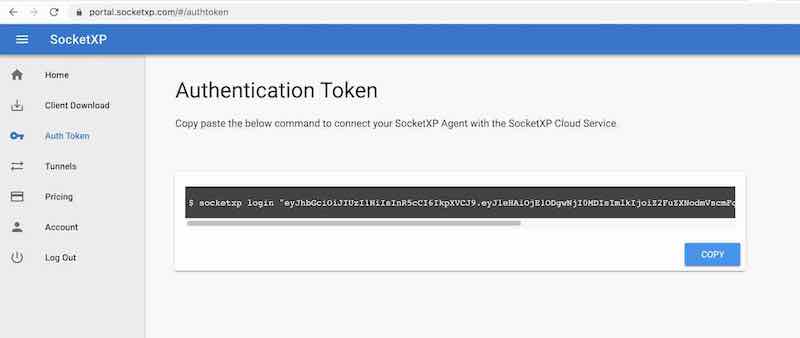
Authenticate the agent:
$ socketxp login [your-authtoken-here]
Step 4: Create the HTTPS Tunnel
$ socketxp connect http://localhost:11434

Public URL -> https://your-user-id-abc123.socketxp.com
Use the matching localhost port for vLLM (8000) or LM Studio (1234) instead of Ollama’s 11434. SocketXP outputs a permanent public HTTPS URL — your model server is now reachable at that address from any machine on the internet.
Ideally, you should configure your AI server (Ollama, vLLM or LM Studio) to provide an API key to securely access your AI server’s API endpoint. How to configure this is specific to your AI Server.
Step 5: Query Your Models Remotely
$ curl https://your-user-id-abc123.socketxp.com/api/generate \
  -d '{
    "model": "llama3",
    "prompt": "What is the capital of France?",
    "stream": false
  }'
Or use the OpenAI-compatible endpoint that Ollama, vLLM, and LM Studio all expose:
$ curl https://your-user-id-abc123.socketxp.com/v1/chat/completions \
  -H "Content-Type: application/json" \
  -d '{
    "model": "llama3",
    "messages": [{"role": "user", "content": "Hello!"}]
  }'
Method 2: Private Endpoint via the SocketXP AI Gateway — Step-by-Step
This method keeps your Ollama, vLLM, or LM Studio server completely unexposed to the public internet. Instead of a public subdomain, requests are routed through https://ai-gateway.socketxp.com and authenticated with an AI Gateway access key.
Step 1: Install and Authenticate the SocketXP Agent
$ sudo socketxp login [your-authtoken-here]
Step 2: Create a Private Tunnel with an Internal URL
Add the --internal-url flag instead of relying on the default public subdomain:
# Ollama
$ socketxp connect http://127.0.0.1:11434 --internal-url https://local-ollama.internal
# LM Studio
$ socketxp connect http://127.0.0.1:1234 --internal-url https://local-lmstudio.internal
# vLLM
$ socketxp connect http://127.0.0.1:8000 --internal-url https://local-vllm.internal
Because no public domain is ever assigned to this tunnel, there’s no public web address to lock down later — one simply doesn’t exist.
Step 3: Register as a Custom Provider
In the SocketXP Web Portal, under AI Providers, add a new Custom Provider and configure:
- Internal Endpoint — the URL you chose above (e.g.,
https://local-ollama.internal) - Model IDs — the exact model names your server exposes (e.g.,
llama3,mistral) - Provider API Key — only needed if your local server itself requires authentication
Step 4: Query Through the AI Gateway
Point any OpenAI-compatible client at the gateway’s base URL, https://ai-gateway.socketxp.com/v1, and authenticate with your AI Gateway access key:
from openai import OpenAI

client = OpenAI(
    base_url="https://ai-gateway.socketxp.com/v1",
    api_key="your-ai-gateway-access-key",
)

response = client.chat.completions.create(
    model="llama3",
    messages=[{"role": "user", "content": "What is the capital of France?"}]
)
print(response.choices[0].message.content)
If you’ve registered more than one provider that happens to expose a model with the same name, target a specific provider explicitly by slug:
base_url="https://ai-gateway.socketxp.com/v1/provider/my-vllm-server"
The gateway strips the provider segment and rewrites the request to match your server’s OpenAI-compatible /v1/... path.
Persisting the Tunnel Across Reboots
For a systemd deployment, define the internal tunnel in the agent’s config.json:
{
    "region": "",
    "tunnels": [
    {
        "destination": "http://127.0.0.1:11434",
        "internal_url": "https://local-ollama.internal"
    }]
}
See the SocketXP Documentation guide for full systemd service setup.
Public URL vs. Private Endpoint: Which Should You Use?
| Public HTTPS URL | Private Endpoint + AI Gateway | |
|---|---|---|
| Exposure | Reachable by anyone with the URL | Never publicly exposed — only reachable through the gateway |
| Authentication | None built-in (relies on URL secrecy, or your AI server’s API key) | AI Gateway access key required on every request |
| Setup | socketxp connect http://localhost:<port> | socketxp connect http://localhost:<port> --internal-url <url> |
| Multiple providers | One URL per tunnel | Multiple local servers (Ollama, vLLM, LM Studio) routed through one OpenAI-compatible base URL |
| Best for | Personal use, quick testing, sharing a single link | Teams, production apps, anything where the model server shouldn’t be internet-facing |
Using with OpenAI SDK or LangChain
Because Ollama, vLLM, and LM Studio all expose an OpenAI-compatible API, you can point any OpenAI SDK or LangChain client at either SocketXP endpoint.
With the public URL:
from openai import OpenAI

client = OpenAI(
    base_url="https://your-user-id-abc123.socketxp.com/v1",
    api_key="ollama",  # ignored by Ollama/vLLM/LM Studio, but the SDK requires a value
)

response = client.chat.completions.create(
    model="llama3",
    messages=[{"role": "user", "content": "Explain gradient descent in one paragraph."}]
)
print(response.choices[0].message.content)
With the AI Gateway private endpoint:
from openai import OpenAI

client = OpenAI(
    base_url="https://ai-gateway.socketxp.com/v1",
    api_key="",
)

response = client.chat.completions.create(
    model="llama3",
    messages=[{"role": "user", "content": "Explain gradient descent in one paragraph."}]
)
print(response.choices[0].message.content)
Either way, you can swap your cloud LLM endpoint for your private Ollama, vLLM, or LM Studio instance in any application that uses the OpenAI SDK.
Keeping the Tunnel Running Permanently
To ensure the tunnel stays up after reboots or terminal sessions close — whether it’s a public URL or a private AI Gateway endpoint — configure the SocketXP agent as a systemd service. See the SocketXP Documenation guide for setup instructions.
Once configured as a service, the agent starts automatically with the machine and maintains the tunnel — your endpoint is always accessible.
Other Local LLM Servers
The same SocketXP methods work for any local LLM inference server:
| Server | Default port | Public URL command | Private endpoint command |
|---|---|---|---|
| Ollama | 11434 | socketxp connect http://localhost:11434 | socketxp connect http://localhost:11434 --internal-url https://local-ollama.internal |
| LM Studio | 1234 | socketxp connect http://localhost:1234 | socketxp connect http://localhost:1234 --internal-url https://local-lmstudio.internal |
| vLLM | 8000 | socketxp connect http://localhost:8000 | socketxp connect http://localhost:8000 --internal-url https://local-vllm.internal |
| llama.cpp server | 8080 | socketxp connect http://localhost:8080 | socketxp connect http://localhost:8080 --internal-url https://local-llamacpp.internal |
| Jan.ai | 1337 | socketxp connect http://localhost:1337 | socketxp connect http://localhost:1337 --internal-url https://local-janai.internal |
Security Considerations
- Public URL method: Ollama, vLLM, and LM Studio do not include built-in authentication by default. The public URL SocketXP creates is accessible to anyone who knows it. Keep the URL safe and private for quick dev access only. Better enable the built-in API key based authentication in your AI LLM server.
- AI Gateway method: Every request must carry a valid AI Gateway access key, and your model server never receives a public address in the first place — there’s no URL to leak because one was never assigned. This is the safer default for anything beyond personal testing.
- Both methods encrypt all traffic in transit with SSL/TLS.
Why SocketXP vs. Other Methods for Remote AI Model Access?
Port forwarding: Requires a public IP, router configuration, and exposes your machine directly to the internet.
SSH tunnel: Works but requires running a tunnel command every time from a machine that already has SSH access — impractical for applications or mobile clients.
SocketXP: A permanent public URL or a private, access-key-authenticated endpoint through the AI Gateway — no router configuration, works on any internet connection, and (for the public URL) the address stays the same indefinitely.
Conclusion
Whether you’re running Ollama, vLLM, or LM Studio, SocketXP gives your locally hosted AI model server a way to be reached from anywhere — either a permanent public HTTPS URL with a single command, or a private endpoint behind the SocketXP AI Gateway that’s never directly exposed to the internet. Your models run on your own hardware, your data stays on your machine, and you can reach the API from any device, anywhere in the world.
For more, see SocketXP IoT Remote Access, the AI Gateway custom providers guide, or the Getting Started guide.
Frequently Asked Questions
Can I access Ollama remotely without a public IP or port forwarding?
Yes. SocketXP installs a lightweight agent on the machine running Ollama. The agent makes an outbound SSL/TLS connection to the SocketXP Cloud Gateway, which gives you a permanent public HTTPS URL. No inbound ports need to be opened on your router or firewall.
Does SocketXP work with Ollama without changing OLLAMA_HOST?
Yes. By default, Ollama listens on localhost (127.0.0.1:11434). SocketXP connects to localhost on the same machine, so you do not need to set OLLAMA_HOST or change any Ollama configuration. The tunnel handles the external connectivity.
Can I access Ollama from my phone or another computer using the SocketXP URL?
Yes. The SocketXP public URL is reachable from any device with an internet connection—your phone, another laptop, or a cloud server—without needing to be on the same network as your Ollama machine.
Is it safe to expose the Ollama API remotely via SocketXP?
SocketXP encrypts all traffic with SSL/TLS. However, the Ollama API itself does not require authentication by default, so anyone who knows your public URL can query your models. Keep the URL private, share it only with trusted users, or place an authenticated reverse proxy in front of Ollama if you need access control.
Can I use the SocketXP Ollama URL with OpenAI-compatible clients?
Yes. Ollama exposes an OpenAI-compatible API at /v1/chat/completions. Set your client's base URL to the SocketXP public URL (e.g., https://your-user-id.socketxp.com) and it will work with any OpenAI SDK or tool that supports a custom base URL.
Does this work with LM Studio or other local LLM servers?
Yes. Any local LLM server that listens on a localhost port—LM Studio (port 1234), llama.cpp server (port 8080), or a custom inference server—can be exposed remotely using the same SocketXP method: socketxp connect http://localhost:
. Can I run multiple Ollama models and access them remotely?
Yes. Ollama hosts all loaded models on a single API endpoint (port 11434). You select the model in your API request body using the 'model' field (e.g., 'model': 'llama3'). One SocketXP tunnel covers all your Ollama models simultaneously.
Can I use Ollama with AI coding assistants like Cursor or Continue.dev remotely via SocketXP?
Yes. Tools like Cursor, Continue.dev, and other OpenAI-compatible coding assistants allow you to set a custom base URL for the language model API. Set the base URL to your SocketXP public URL (e.g., https://your-user-id.socketxp.com) and select the Ollama model you want to use. Your coding assistant will send requests through the SocketXP tunnel to your local Ollama instance.
Can I use LangChain or LlamaIndex with a remote Ollama instance via SocketXP?
Yes. Both LangChain and LlamaIndex support Ollama as an LLM backend and allow you to set a custom base URL. Point the base_url to your SocketXP public URL instead of http://localhost:11434, and all inference calls from your application will be routed to your remote Ollama server.
How do I run Ollama on a home server and use it from my work laptop?
Install Ollama and the SocketXP agent on your home server. Run 'socketxp connect http://localhost:11434' to get a permanent public URL. From your work laptop (even behind a corporate firewall), use that URL as the Ollama API endpoint in your applications or coding tools. No VPN is required.
How do I keep the Ollama SocketXP tunnel running permanently after a reboot?
Configure the SocketXP agent as a Linux systemd service following the instructions in the SocketXP Getting Started guide. The service starts automatically when the machine boots, re-establishes the tunnel, and your Ollama public URL remains reachable without any manual intervention.
What is the best alternative to ngrok for exposing Ollama remotely?
SocketXP is a strong alternative to ngrok for Ollama because it provides a permanent URL that does not change between sessions. ngrok free tier URLs are ephemeral—they change every time you restart the tunnel, which breaks any client application or coding tool that has the URL hardcoded. SocketXP's permanent URL is more practical for ongoing Ollama API access.
Can I expose Ollama running inside a Docker container remotely?
Yes. If Ollama is running inside Docker and you have mapped its port to the host (e.g., -p 11434:11434), the host machine's localhost:11434 is accessible. Run the SocketXP agent on the host machine and create the tunnel with 'socketxp connect http://localhost:11434' to expose it remotely.
What is the SocketXP AI Gateway, and how is it different from the public HTTPS URL?
The public HTTPS URL (e.g., https://your-user-id.socketxp.com) exposes your local AI server directly on the internet under a SocketXP subdomain — anyone with the URL can send it requests. The AI Gateway takes a different approach: you create a private internal endpoint that is never assigned a public address, and all access happens through https://ai-gateway.socketxp.com using an AI Gateway access key. Your model server itself is never internet-reachable; only authenticated requests through the gateway can reach it.
How do I create a private internal endpoint for Ollama, vLLM, or LM Studio?
Use the --internal-url flag when creating the tunnel, for example: socketxp connect http://127.0.0.1:11434 --internal-url https://local-ollama.internal. This registers a private endpoint with no public domain attached. You then register that endpoint as a Custom Provider in the SocketXP Web Portal under AI Providers, specifying the internal endpoint, the model IDs it serves, and an optional provider API key.
How does authentication work with the SocketXP AI Gateway?
Every request to https://ai-gateway.socketxp.com must include a valid AI Gateway access key, passed as the api_key parameter in an OpenAI-compatible client. The gateway validates the key before routing the request to your private tunnel, so your local Ollama, vLLM, or LM Studio server is never exposed to unauthenticated traffic.
Can I connect multiple local AI servers (Ollama, vLLM, LM Studio) to the same AI Gateway?
Yes. Each server is registered as a separate Custom Provider with its own internal endpoint and model IDs. If two providers expose a model with the same name, you can target a specific one explicitly using https://ai-gateway.socketxp.com/v1/provider/
as the base URL. Which method should I use: the public HTTPS URL or the AI Gateway private endpoint?
Use the public HTTPS URL for quick personal access or testing — it's a single command with no additional setup. Use the AI Gateway private endpoint when you want your model server to never be directly exposed to the internet, need built-in access-key authentication, or want to route requests to multiple local AI providers (Ollama, vLLM, LM Studio) through a single OpenAI-compatible base URL.