
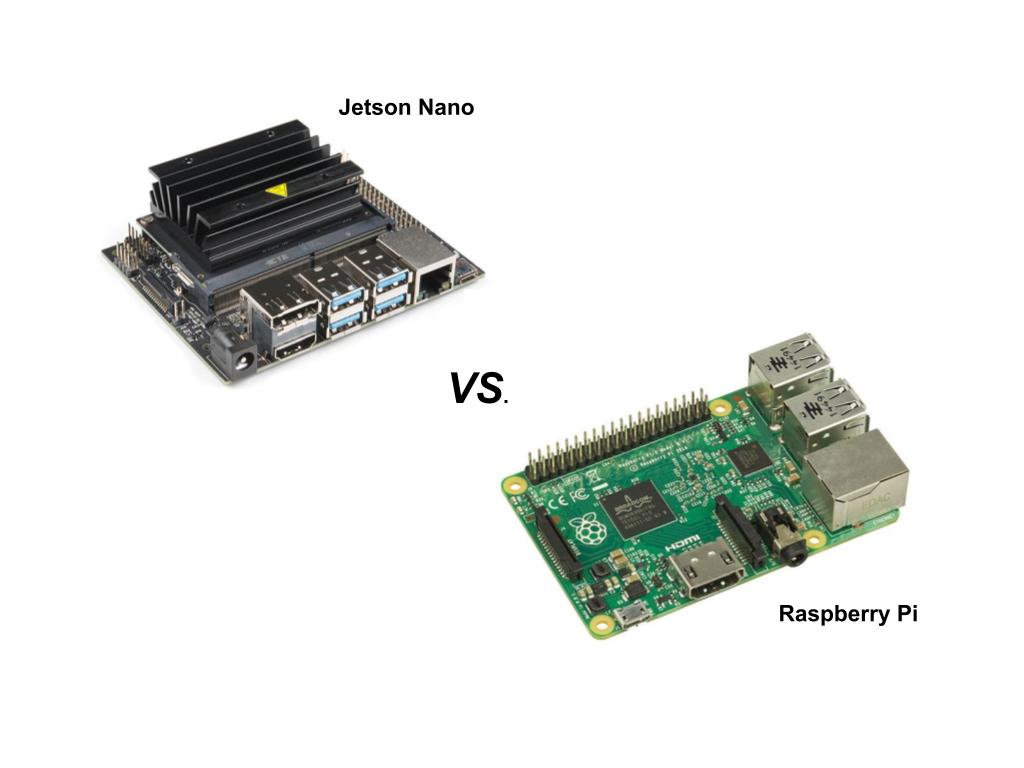
The NVIDIA Jetson Orin family—Jetson AGX Orin, Jetson Orin NX, and Jetson Orin Nano—delivers up to 275 TOPS of AI performance in a compact, power-efficient module. Jetson Orin is the platform of choice for deploying edge AI applications: real-time object detection, pose estimation, autonomous mobile robots, smart cameras, and industrial inspection systems.
Once a Jetson Orin device is deployed in the field—at a factory, on a vehicle, in a store, or out in the open—you need a reliable way to SSH into it for debugging, push software updates, and access running inference applications. That device is almost always behind a NAT router or firewall with no public IP address.
This guide shows how to use SocketXP Remote Access Solution to securely access NVIDIA Jetson Orin devices from anywhere over the internet, without port forwarding, without a VPN, and without a public IP.
Why Remote Access Matters for Jetson Orin Edge AI Deployments
Jetson Orin devices are rarely deployed in places with convenient physical access:
- Factory floor: Behind industrial firewalls, difficult to reach without disturbing production.
- Autonomous robots: Moving through environments, sometimes unreachable.
- Smart cameras and kiosks: Deployed at customer sites across multiple locations.
- Research and lab environments: University or company GPU servers accessed by remote researchers.
Without a remote access solution, any configuration change, model update, or debug session requires either physical access or a complex VPN setup with the customer’s IT team.
SocketXP Remote Access for Jetson Orin: How It Works
SocketXP installs a lightweight agent on the Jetson Orin. The agent makes an outbound SSL/TLS encrypted connection to the SocketXP Cloud Gateway—similar to how a secure VPN tunnel works, but without requiring any inbound port to be opened.
From the SocketXP portal, you can:
- SSH into the device via a browser-based terminal (no client software needed).
- Access web applications and REST APIs running on the Jetson via a permanent public HTTPS URL.
- Transfer files using SFTP or SCP over the SSH tunnel.
- Monitor device health: CPU, memory, and disk usage with webhook alerts.
- Push OTA updates: Deploy new model files, application binaries, or Docker containers to a fleet.
- Track device location: View device locations on a map (GPS or Google GeoLocation API).
Step-by-Step: Remote SSH Access to NVIDIA Jetson Orin
Step 1: Enable SSH on Your Jetson Orin
NVIDIA JetPack (the Linux OS for Jetson) is Ubuntu-based and includes OpenSSH. Verify and enable SSH:
$ sudo systemctl enable ssh
$ sudo systemctl start ssh
$ sudo systemctl status ssh
● ssh.service - OpenBSD Secure Shell server
   Active: active (running)
Step 2: Install the SocketXP Agent
Download and install the SocketXP agent on your Jetson Orin. The agent supports the ARM64 (aarch64) architecture used by all Orin modules. Use the one-line install command from the SocketXP portal, which automatically selects the correct binary for your architecture.
Step 3: Get Your Authentication Token
Sign up at the SocketXP Web Portal and copy your authentication token.
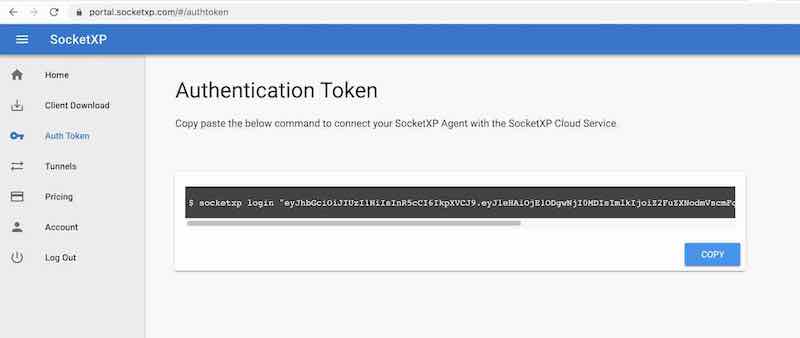
Authenticate the agent:
$ socketxp login "eyJhbGciOiJIUzI1NiIsInR5cCI6IkpXVCJ9..."
Step 4: Create the SSH Tunnel
$ socketxp connect tcp://localhost:22

Connected to SocketXP Cloud Gateway.
Access the TCP service securely using the SocketXP agent in Slave Mode.
Your Jetson Orin now appears in the SocketXP Portal Devices page.
Step 5: SSH into Jetson Orin from Anywhere
Option A — Browser terminal (no software install needed)
Open portal.socketxp.com, find your Jetson Orin in the Devices list, and click Connect. A full terminal opens in the browser.
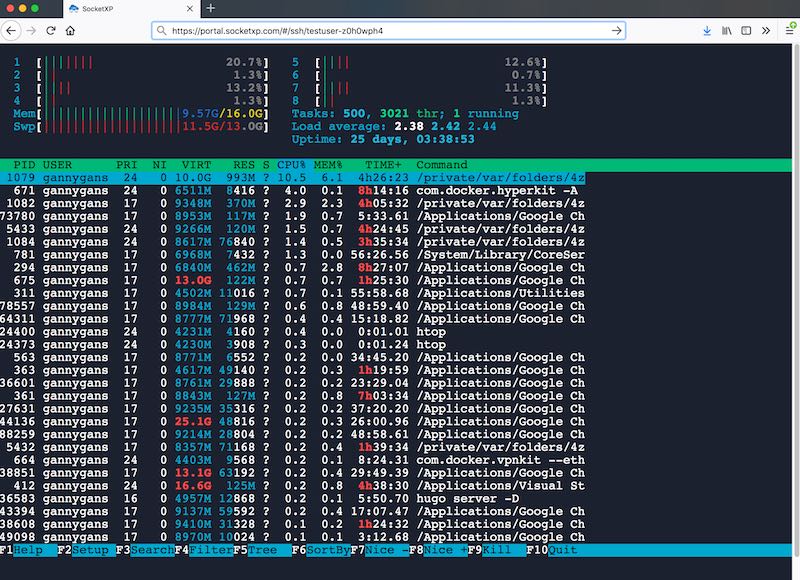
Option B — SSH client (PuTTY, OpenSSH) via slave mode
On your laptop, run the SocketXP agent in slave mode:
$ socketxp connect tcp://localhost:2222 \
    --iot-slave \
    --peer-device-id "your-jetson-orin-device-id" \
    --peer-device-port 22 \
    --authtoken "your-auth-token"

Listening for TCP connections at:
Local URL -> tcp://localhost:2222
Then connect your SSH client:
$ ssh nvidia@localhost -p 2222
Remote Access to an Inference Application Running on Jetson Orin
Many edge AI applications expose a REST API or web dashboard for monitoring and control. For example, a DeepStream-based pipeline might serve an inference API on port 8080, or a custom Python application might expose a Gradio interface on port 7860.
To access these remotely, create a second SocketXP tunnel for the application port:
$ socketxp connect http://localhost:8080

Public URL -> https://your-user-id-abc123.socketxp.com
Open the URL in any browser to reach your inference application from anywhere. The same method works for any web app or API running on the Jetson.
Deploying to a Fleet of Jetson Orin Devices
If you have multiple Jetson Orin devices deployed across locations, SocketXP’s fleet management capabilities let you manage them all from a single dashboard:
- Group devices by location, customer, or project.
- Deploy OTA updates (model files, application binaries, Docker containers) to entire device groups simultaneously.
- Monitor all devices in real time: online/offline status, CPU, memory, disk.
- Execute remote commands on one device or all devices in a group.
See the SocketXP IoT Device Management Platform page for a full overview of fleet management capabilities.
Single-Touch Installation for Large Fleets
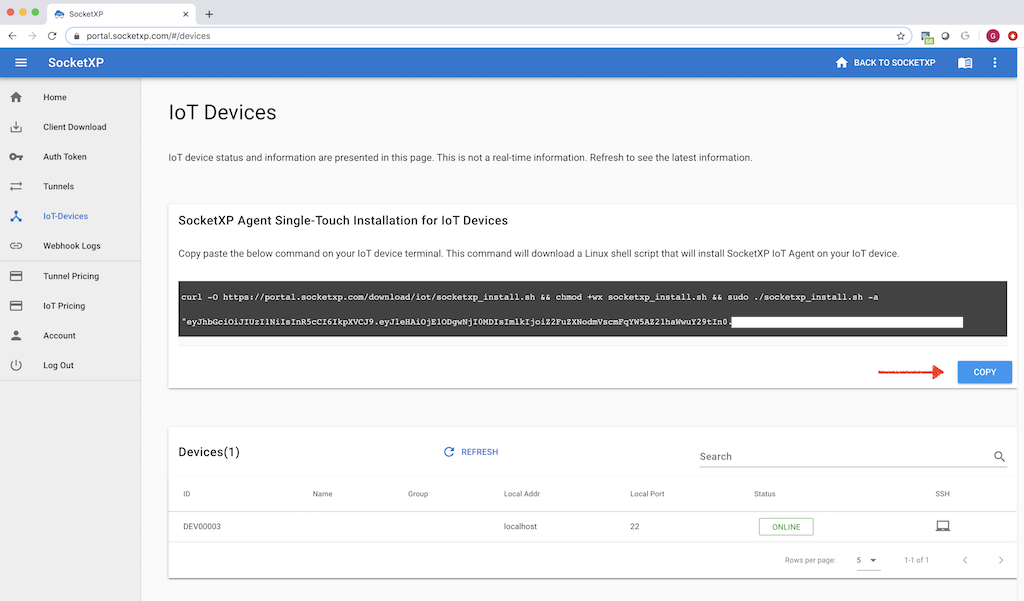
For deploying SocketXP to many Jetson Orin devices (for example, during a production rollout), SocketXP provides a single-touch installation script that you can copy and paste once into each device’s terminal—or incorporate into your manufacturing image. The device automatically registers with SocketXP and appears online in the portal.
Security
SocketXP never exposes your Jetson Orin’s ports to the public internet. The SSH port, inference API port, and any other ports are only accessible through the encrypted SocketXP tunnel, authenticated with your SocketXP account.
Optional features for additional security:
- SSH public key authentication with automated key management and short-lived keys.
- Two-factor authentication via SSO (Google Workspace or Microsoft 365).
- Role-based access control (RBAC): Restrict which team members can access which devices.
For a detailed discussion of Jetson Orin security best practices, see the section on Unsafe Methods of Remote Access in our Jetson Nano article—the same principles apply to Orin.
Conclusion
NVIDIA Jetson Orin is the leading platform for edge AI inference. SocketXP provides the secure connectivity layer that lets you SSH in, manage, monitor, and update Orin devices wherever they are deployed—behind any NAT router, firewall, cellular network, or satellite connection.
Install the SocketXP agent, run socketxp connect tcp://localhost:22, and your Jetson Orin is accessible from anywhere via the portal or your preferred SSH client. No public IP, no port forwarding, no VPN.
To learn more about what SocketXP can do for your edge AI fleet, visit the SocketXP IoT Device Management Platform or read the Getting Started guide.
Frequently Asked Questions
Which Jetson Orin models does SocketXP support?
SocketXP supports all NVIDIA Jetson Orin variants—Jetson AGX Orin (64GB, 32GB), Jetson Orin NX (16GB, 8GB), and Jetson Orin Nano (8GB, 4GB). All run JetPack which is Ubuntu-based Linux, and the SocketXP agent supports the ARM64 architecture used by all Orin modules.
Can I remotely access a Jetson Orin behind a firewall without port forwarding?
Yes. The SocketXP agent makes an outbound SSL/TLS connection on port 443, so no inbound firewall rules need to change. It works through NAT routers, corporate firewalls, 4G/5G cellular, and Starlink satellite connections.
Can I access an AI inference web app running on Jetson Orin remotely?
Yes. If your inference application exposes a web interface or REST API on a local port (e.g., localhost:8080), run 'socketxp connect http://localhost:8080' to get a permanent public HTTPS URL that you can open from any browser or call from any application.
Can I remotely monitor Jetson Orin GPU, CPU, and memory utilization?
Yes. SocketXP's device monitoring feature can track CPU and memory usage on the Jetson Orin and send webhook alerts when utilization exceeds your defined thresholds. For GPU-specific metrics, you can write a custom Python monitoring script using jtop (the Jetson stats tool) and feed the data into SocketXP's custom metric monitoring.
Can I push OTA updates to a fleet of Jetson Orin devices remotely?
Yes. SocketXP's OTA update feature lets you deploy updated application binaries, Python scripts, model files, Docker containers, or configuration files to a group of Jetson Orin devices simultaneously, via the SocketXP portal or REST API.
Does SocketXP support VNC or remote desktop access to Jetson Orin?
Yes. Install a VNC server (such as TigerVNC) on the Jetson Orin, then run 'socketxp connect tcp://localhost:5900' to create a private VNC tunnel. Use the SocketXP slave mode on your laptop to forward the VNC port locally, then connect your VNC client to localhost.
How is SocketXP different from NVIDIA's own remote management tools?
NVIDIA provides DeepStream and Jetson platform tools for inference pipeline management, but these do not provide general-purpose remote SSH access, file transfer, or device fleet management. SocketXP complements these tools by providing the underlying secure connectivity layer that lets you SSH in, push updates, and monitor any Jetson device from anywhere.
How do I set up NVIDIA Jetson Orin for headless operation and remote access?
Flash JetPack onto your Jetson Orin module, enable SSH (sudo systemctl enable ssh), install the SocketXP agent, and run 'socketxp connect tcp://localhost:22'. The device can then operate headlessly—without a monitor, keyboard, or mouse—and you can SSH into it from anywhere via the SocketXP portal or your SSH client.
Can I run Jupyter Notebook on Jetson Orin and access it remotely for GPU-accelerated AI development?
Yes. Install JupyterLab on the Jetson Orin (pip install jupyterlab), start it with 'jupyter lab --no-browser --port=8888', and create a SocketXP tunnel: 'socketxp connect http://localhost:8888'. You get a permanent public URL to run GPU-accelerated Python notebooks on the Jetson's NVIDIA GPU from any browser.
How do I update software packages or JetPack components on Jetson Orin remotely?
SSH into the Jetson Orin via SocketXP and run standard apt commands: 'sudo apt update && sudo apt upgrade'. For JetPack SDK component updates, use the NVIDIA SDK Manager on a connected development machine. For larger-scale fleet updates, use SocketXP's remote command execution feature to push and run update scripts to a group of Jetson devices simultaneously.
Can I access Jetson Orin from a Windows laptop or Mac?
Yes. From Windows, use PuTTY or Windows OpenSSH with SocketXP in slave mode, or open the SocketXP portal in any browser for an instant SSH terminal—no software installation needed. From macOS, use the built-in 'ssh' command in Terminal with SocketXP slave mode, or use the browser terminal.
How do I debug a failing AI inference pipeline on Jetson Orin remotely?
SSH into the Jetson Orin via SocketXP and use: 'journalctl -u inference.service -f' to stream service logs, 'sudo dmesg | tail' for kernel and hardware errors, 'jtop' (Jetson stats tool) for real-time GPU/CPU/memory usage, and 'tegrastats' for NVIDIA's own performance counter output. You can restart the inference pipeline with 'sudo systemctl restart inference.service' without physical access.