
The Raspberry Pi—especially Raspberry Pi 5—has become a popular platform for edge AI deployments, with AI accelerator add-ons that dramatically increase inference performance:
- Hailo-8L AI HAT+ (13 TOPS) and Hailo-8 AI HAT+ (26 TOPS) for Raspberry Pi 5
- Google Coral USB Accelerator (4 TOPS) compatible with all Raspberry Pi models
- Intel Neural Compute Stick 2 (NCS2) via USB
These accelerators enable real-time object detection, image classification, pose estimation, and other vision AI workloads directly on edge hardware—no cloud inference required.
Once deployed in the field—at a retail store, factory, farm, building entrance, or remote location—you need to SSH in to debug issues, push updated AI models, and monitor device health. The challenge: the Raspberry Pi sits behind a home router or customer firewall with no public IP.
This guide shows how to use SocketXP Remote Access Solution to securely access and manage Raspberry Pi AI edge devices from anywhere, without port forwarding.
Use Cases for Remote Raspberry Pi AI Access
- Computer vision cameras: Pi + Hailo HAT running object detection at a retail store. You need to update the model or tune confidence thresholds remotely.
- Agricultural monitoring: Pi with a camera and Coral TPU in a field, classifying plant disease. You need to SSH in to check logs and push a retrained model.
- Smart building access control: Pi running face recognition at a building entrance. You need to update the recognition model without on-site visits.
- Industrial quality inspection: Pi + AI HAT on a factory line. You need to monitor inference throughput and deploy updated defect detection models.
- Research installations: Multiple Pi devices deployed at distributed research sites. You need to manage all of them from a central location.
How SocketXP Works with Raspberry Pi AI Devices
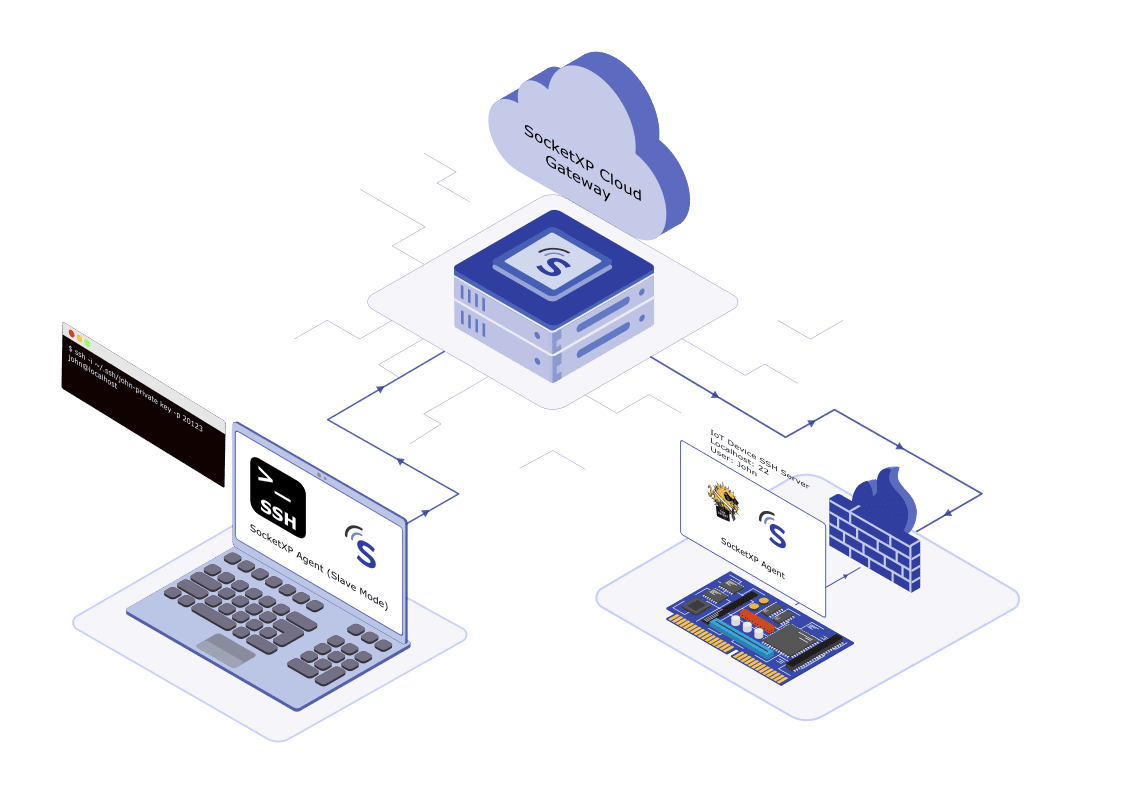
SocketXP installs a lightweight agent on the Raspberry Pi (ARM or ARM64 binary). The agent makes an outbound SSL/TLS connection to the SocketXP Cloud Gateway—no inbound port needs to be opened on the router.
From the SocketXP portal you can:
- SSH into the Pi via browser or your preferred SSH client.
- Expose the AI inference API on a public HTTPS URL.
- Push OTA updates: Deploy new model files, Python scripts, or Debian packages to a Pi fleet.
- Monitor device health: CPU, memory, disk usage with webhook alerts.
- Execute remote commands: Run shell commands on one or all devices in a group without SSH.
Step-by-Step: Remote SSH Access to Raspberry Pi AI Device
Step 1: Enable SSH on Your Raspberry Pi
$ sudo raspi-config
# Navigate to: Interface Options > SSH > Enable
Or directly:
$ sudo systemctl enable ssh
$ sudo systemctl start ssh
$ sudo systemctl status ssh
● ssh.service - OpenBSD Secure Shell server
   Active: active (running)
Step 2: Install the SocketXP Agent
Download and install the SocketXP agent on the Raspberry Pi. SocketXP supports:
- Raspberry Pi 5, 4, 3, Zero 2 W: ARM64 (64-bit OS) and ARM (32-bit OS)
- Raspberry Pi Zero W, older models: ARM (32-bit)
Use the one-line install command from the SocketXP portal—it automatically selects the correct binary for your Pi model and OS.
Step 3: Authenticate the Agent
Sign up at the SocketXP Web Portal and copy your authentication token.
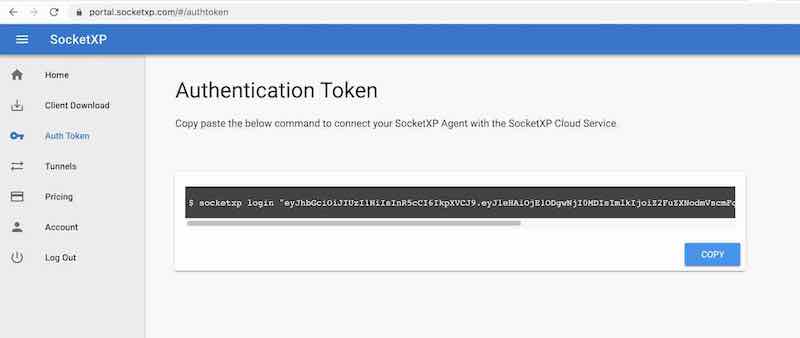
$ socketxp login "eyJhbGciOiJIUzI1NiIsInR5cCI6IkpXVCJ9..."
Step 4: Create the SSH Tunnel
$ socketxp connect tcp://localhost:22

Connected to SocketXP Cloud Gateway.
Access the TCP service securely using the SocketXP agent in Slave Mode.
Your Raspberry Pi is now listed in the SocketXP Portal Devices page.
Step 5: SSH from Anywhere
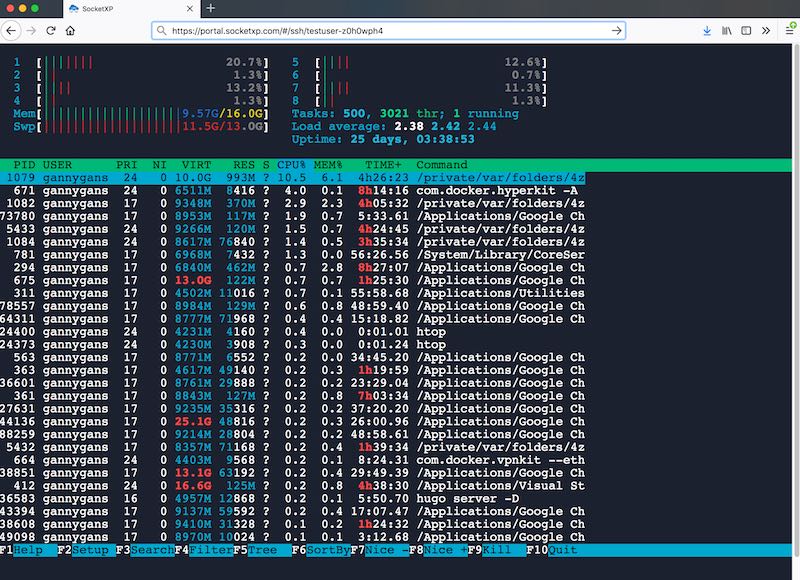
Browser terminal — Open portal.socketxp.com, find your Pi in the Devices list, and click Connect.
SSH client (PuTTY or OpenSSH) — Run the SocketXP agent in slave mode on your laptop:
$ socketxp connect tcp://localhost:2222 \
    --iot-slave \
    --peer-device-id "your-pi-device-id" \
    --peer-device-port 22 \
    --authtoken "your-auth-token"

Listening for TCP connections at:
Local URL -> tcp://localhost:2222
$ ssh pi@localhost -p 2222
Remote Access to the AI Inference API
If your edge AI application exposes a REST API or web dashboard (for example, a Python Flask or FastAPI inference server on port 8080), you can access it remotely with a second SocketXP tunnel:
$ socketxp connect http://localhost:8080

Public URL -> https://your-user-id-abc123.socketxp.com
Open the public URL in a browser or call it from a remote application to get inference results from your Raspberry Pi AI pipeline.
Pushing Updated AI Models to a Raspberry Pi Fleet
When you retrain a model and want to deploy the updated file to multiple Raspberry Pi AI devices simultaneously, use SocketXP’s OTA update:
- Package the new model file (
.hef,.tflite,.onnx) with a deployment shell script. - Upload to the SocketXP portal OTA Artifacts.
- Target your device group (e.g., “raspberry-pi-cameras-london”).
- SocketXP delivers the file to every Pi in the group and executes the script.
Example deployment script for a Hailo .hef model update:
#!/bin/bash
MODEL_PATH="/opt/inference/model.hef"
NEW_MODEL="model_v2.hef"

sudo systemctl stop hailo-inference.service
cp "$NEW_MODEL" "$MODEL_PATH"
sudo systemctl start hailo-inference.service

sleep 5
if systemctl is-active --quiet hailo-inference.service; then
    echo "Hailo model deployed."
    exit 0
else
    exit 1
fi
See the full guide on OTA Update for AI/ML Models on Edge Devices for more details.
Monitoring Your Raspberry Pi AI Devices
SocketXP’s monitoring feature watches device health and alerts you via webhook:
- CPU and memory alerts: AI inference is CPU/memory intensive. Get notified if utilization exceeds safe thresholds.
- Process monitoring: Alert if the inference service crashes unexpectedly.
- Log monitoring: Watch inference logs for error patterns.
- Offline alerts: Get notified immediately if a field-deployed Pi loses connectivity.
Connect alerts to Slack, PagerDuty, or any HTTP webhook endpoint. See the SocketXP IoT Remote Monitoring page for setup details.
Security
SocketXP never opens an inbound port on your Pi or your router. All access goes through the encrypted SocketXP tunnel, authenticated with your account. For additional security:
- Use SSH public key authentication (SocketXP manages short-lived keys automatically).
- Enable two-factor authentication (2FA) via SSO on your SocketXP account.
- Use RBAC to control which team members can access which Pi devices.
Conclusion
Raspberry Pi with AI accelerators—Hailo AI HAT+, Google Coral TPU, or Intel NCS2—is a powerful and cost-effective edge AI platform. SocketXP gives you secure, permanent remote access to these devices from anywhere: SSH via browser or your SSH client, inference API access via a public HTTPS URL, fleet-scale OTA model updates, and continuous health monitoring.
Install the agent, run socketxp connect tcp://localhost:22, and your Pi AI device is reachable from anywhere in the world—without touching your router.
For more details, visit SocketXP IoT Remote Access or the Getting Started guide.
Frequently Asked Questions
Does SocketXP work with Raspberry Pi 5 and the Hailo AI HAT+?
Yes. SocketXP's agent supports ARM64 (aarch64) used by Raspberry Pi 5. The Hailo AI HAT+ is a PCIe AI accelerator that runs independently of SocketXP—you install SocketXP alongside your HailoRT and inference pipeline software, and use it for SSH access, monitoring, and OTA updates.
Can I remotely manage a fleet of Raspberry Pi AI edge devices?
Yes. Register all your Raspberry Pi devices with SocketXP, group them in the portal, and manage them as a fleet. You can push OTA updates (model files, application binaries, configuration) to all devices simultaneously, monitor CPU/memory health, and SSH into any device individually from the portal.
Can I push an updated AI model file to my Raspberry Pi AI HAT remotely?
Yes. Use SocketXP's OTA update feature to push updated model files (.hef for Hailo, .tflite for TensorFlow Lite, .onnx for ONNX Runtime) along with a deployment script to your Raspberry Pi fleet. See our guide on OTA updates for AI model files for details.
Does SocketXP work with Google Coral USB Accelerator or Dev Board?
Yes. Google Coral USB Accelerator connects to any Linux machine including Raspberry Pi. The SocketXP agent runs on the host Raspberry Pi independently of the Coral USB device. You get SSH access, OTA updates, and monitoring for the host machine and its attached Coral accelerator.
Can I access a computer vision inference stream remotely?
If your computer vision application serves an MJPEG stream or a web-based video display on a local HTTP port, you can tunnel it through SocketXP with 'socketxp connect http://localhost:
'. For raw RTSP or UDP video streams, SocketXP's HTTP tunnel is not the right tool—those typically require a dedicated video streaming proxy. Can I remotely debug a Hailo inference pipeline on Raspberry Pi?
Yes. SSH into the Raspberry Pi via SocketXP and use standard Linux debugging tools (journalctl, strace, dmesg, hailo_pci diagnostics) in the terminal. You can also view application logs and restart the inference service remotely without physical access.
Which Raspberry Pi models are compatible with the Hailo AI HAT+?
The Hailo-8 AI HAT+ (26 TOPS) and Hailo-8L AI HAT+ (13 TOPS) connect via the PCIe interface available on Raspberry Pi 5 only. For earlier models (Pi 4, Pi 3, Pi Zero), the Google Coral USB Accelerator or Intel Neural Compute Stick 2 connect via USB and are compatible. SocketXP works with all these models via the same SSH and web app tunneling approach.
How do I set up Raspberry Pi with AI HAT for headless remote operation from first boot?
Flash Raspberry Pi OS, pre-enable SSH by placing an empty file named 'ssh' in the boot partition before first power-on, connect the Pi to your network, install the SocketXP agent, and create the SSH tunnel. The Pi will appear online in the SocketXP portal and you can SSH into it remotely from that point on—no monitor or keyboard ever needed.
Can I use Intel Neural Compute Stick 2 (NCS2) or OpenVINO on Raspberry Pi and access it remotely?
Yes. Intel NCS2 connects via USB and runs OpenVINO models on Raspberry Pi. The SocketXP agent runs on the host Raspberry Pi independently of the NCS2 device. Install SocketXP for SSH access, OTA updates for your .xml/.bin OpenVINO models, and CPU/memory monitoring—the same setup as any other Raspberry Pi AI accelerator.
Can I run Jupyter Notebook on Raspberry Pi AI HAT and access it remotely?
Yes. Install JupyterLab on the Raspberry Pi (pip install jupyterlab), start it with 'jupyter lab --no-browser --port=8888', and create a SocketXP tunnel: 'socketxp connect http://localhost:8888'. You can then write and run Python inference code using the Hailo or Coral Python API from any browser, with the accelerator doing the heavy lifting on the Pi.
How do I monitor inference latency and throughput on my Raspberry Pi AI edge device remotely?
SSH into the Pi via SocketXP and use the monitoring tools provided by your inference framework (e.g., hailo-pci for Hailo stats, or a Python script that logs inference time per frame). For continuous monitoring, you can use SocketXP's custom Python monitoring hook to report custom metrics like average inference latency or frames-per-second to the SocketXP platform and receive webhook alerts when performance degrades.