
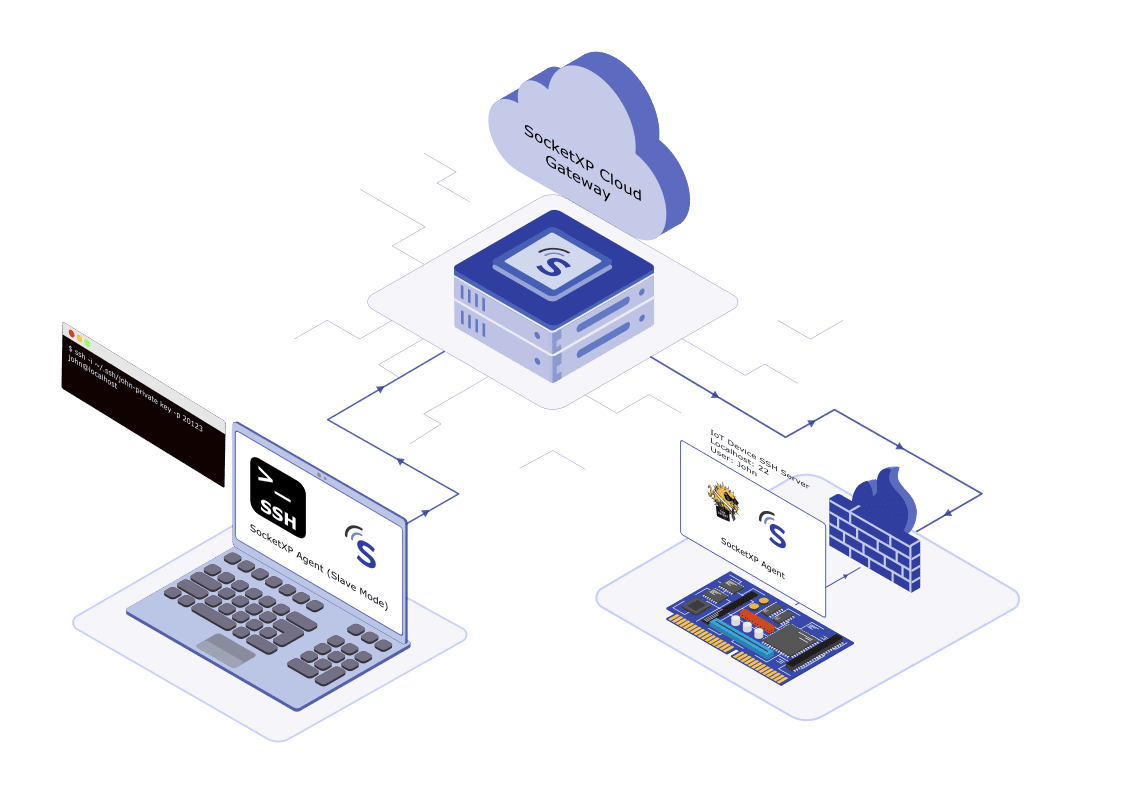
Managing a Raspberry Pi from a smartphone is increasingly important for engineers who monitor IoT deployments, check sensor readings, restart services, or pull logs while away from their desk. Whether you’re on an iPhone or Android device, Raspberry Pi remote access via SSH requires solving the same NAT/CGNAT networking problem — and for mobile devices, installing and configuring a VPN client adds friction that often isn’t practical in the field.
SSH from iPhone or Android to Raspberry Pi in 3 steps:
- On the Pi: install SocketXP agent and run
socketxp connect tcp://localhost:22 - On your phone: open Safari (iPhone) or Chrome (Android) and go to
portal.socketxp.com - Tap the terminal icon next to your Raspberry Pi in the Devices list — an SSH session opens directly in the mobile browser, no SSH app needed
Works over WiFi, 4G, and 5G. No VPN, no port forwarding, no app to install on your phone.
The Mobile Remote Access Challenge
Standard mobile SSH apps (Termius, JuiceSSH, Blink Shell) require a reachable hostname and open SSH port to connect to. When your Raspberry Pi is behind a NAT router or CGNAT:
- The Pi has no public IP — its private address (
192.168.x.x) is not internet-routable - Port forwarding on the home router is impossible with CGNAT (many mobile ISPs)
- Setting up a VPN (Tailscale, WireGuard) on a mobile phone adds an always-on VPN client that drains battery and may conflict with corporate MDM policies
- Peer-to-peer mesh VPN tools like Tailscale require the VPN client on every access device — impractical for visiting engineers or field support teams using personal phones
SocketXP solves this with a browser-first approach: the Pi’s agent creates an outbound TLS tunnel to the SocketXP cloud gateway, and you access the Pi via the SocketXP web terminal in your mobile browser — no VPN, no SSH app, no configuration on your phone.
Step 1: Enable SSH on Your Raspberry Pi
sudo raspi-config
# Navigate to: Interface Options > SSH > Enable
Or directly via systemd:
sudo systemctl enable ssh
sudo systemctl start ssh
Step 2: Install SocketXP on Your Raspberry Pi
Step 2.1: Download and Install
Follow the download and install instructions to install the SocketXP agent on your Raspberry Pi. The agent supports arm (32-bit) and arm64 (64-bit) for all Pi models.
Step 2.2: Get Your Authentication Token
Sign up at the SocketXP Web Portal and retrieve your authentication token.
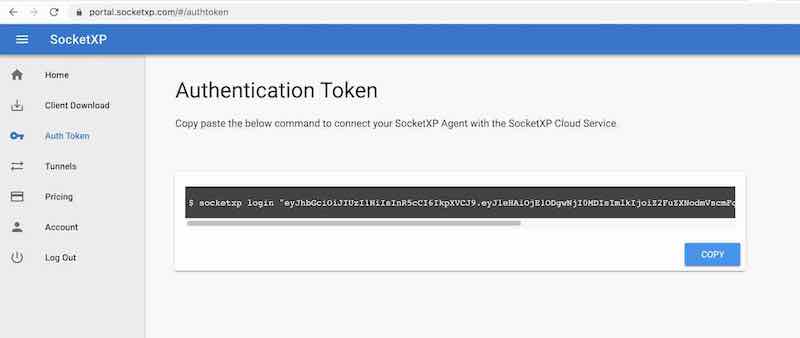
Authenticate the agent:
$ socketxp login [your-auth-token-goes-here]
Step 2.3: Create the SSH Tunnel
$ socketxp connect tcp://localhost:22

Connected to SocketXP Cloud Gateway.
Access the device securely using the SocketXP agent in IoT Slave Mode.
Your Pi appears in the SocketXP portal Devices list.
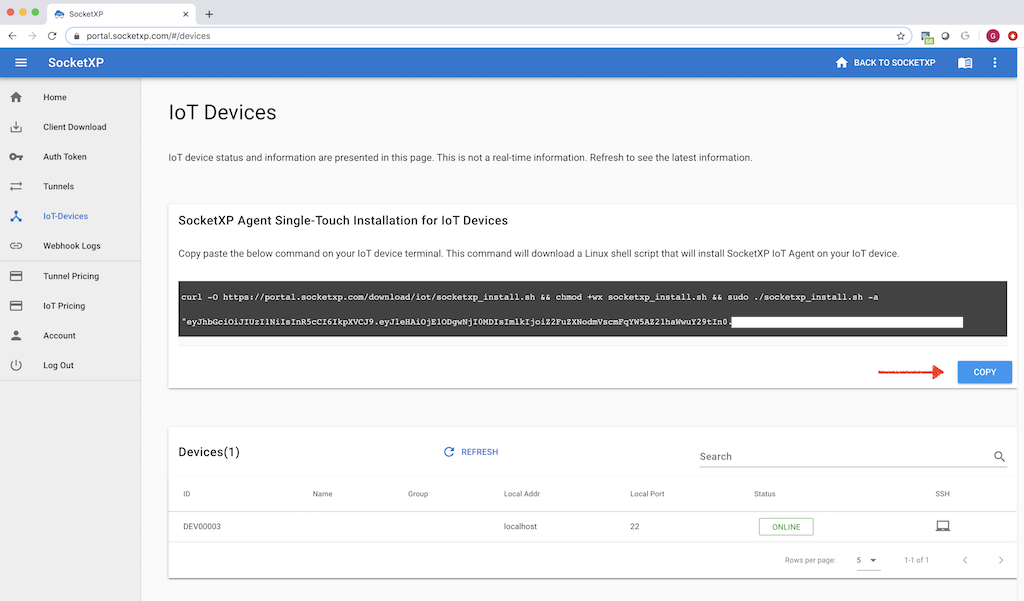
Step 3: Access Raspberry Pi from iPhone or Android
Method A: SocketXP Web Terminal in Mobile Browser (Recommended)
This is the zero-friction path — no SSH app, no VPN, no additional configuration on your phone.
On iPhone (Safari):
- Open Safari
- Go to
portal.socketxp.com - Log in with your SocketXP credentials
- Tap Devices in the navigation
- Find your Raspberry Pi and tap the terminal icon
On Android (Chrome):
- Open Chrome
- Go to
portal.socketxp.com - Log in with your SocketXP credentials
- Tap Devices
- Find your Raspberry Pi and tap the terminal icon
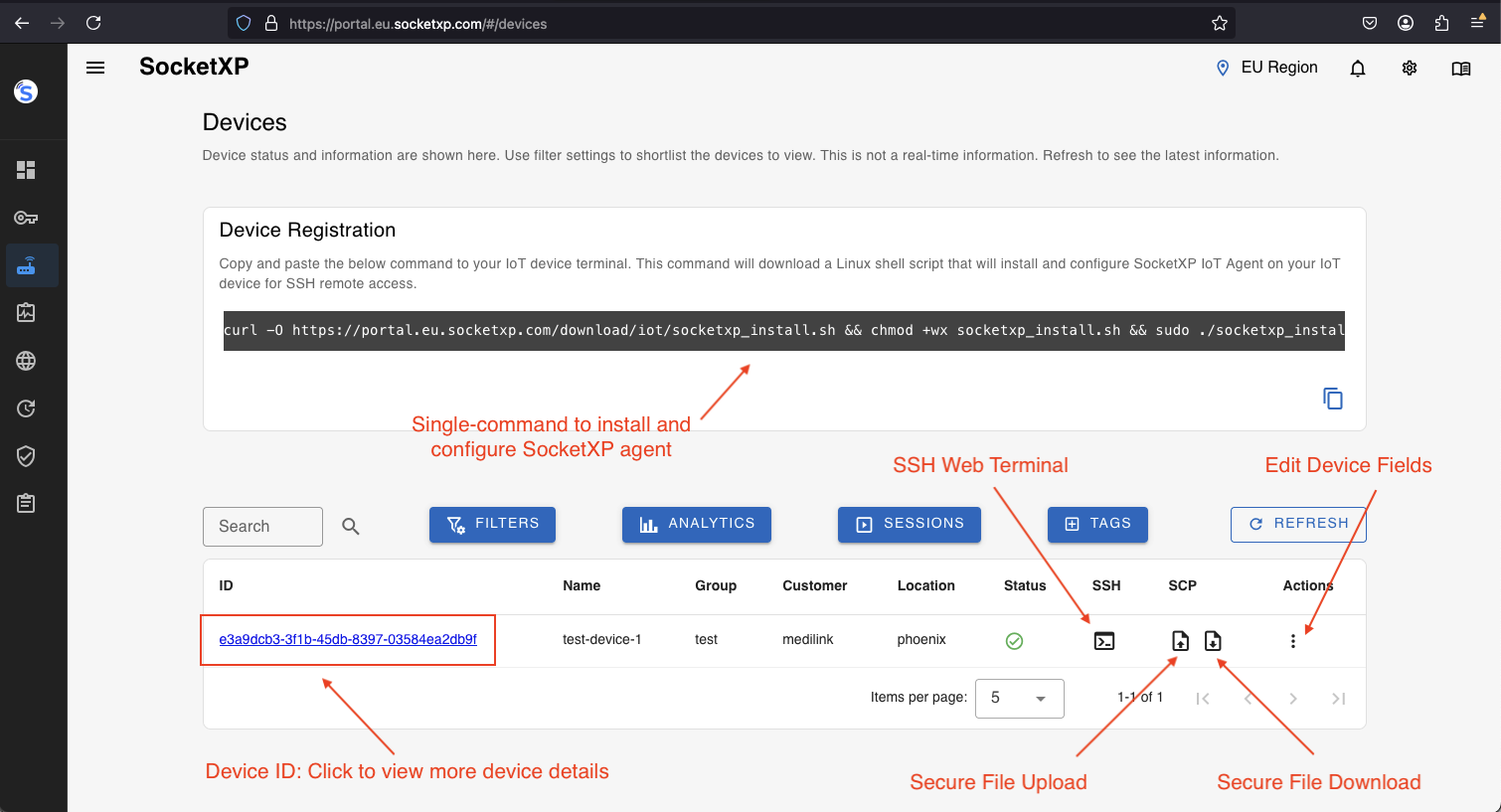
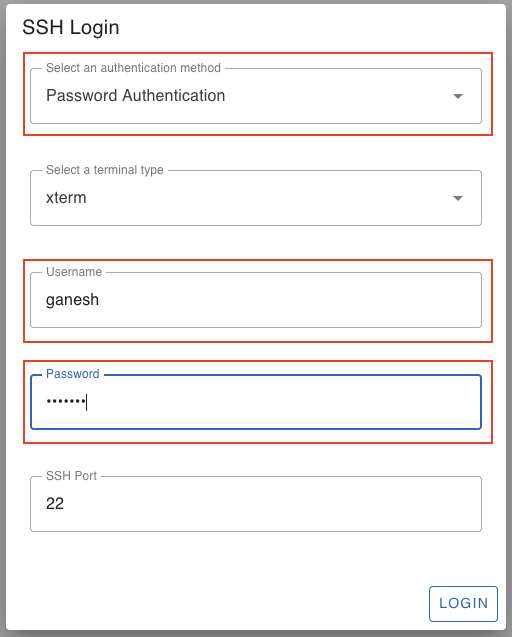
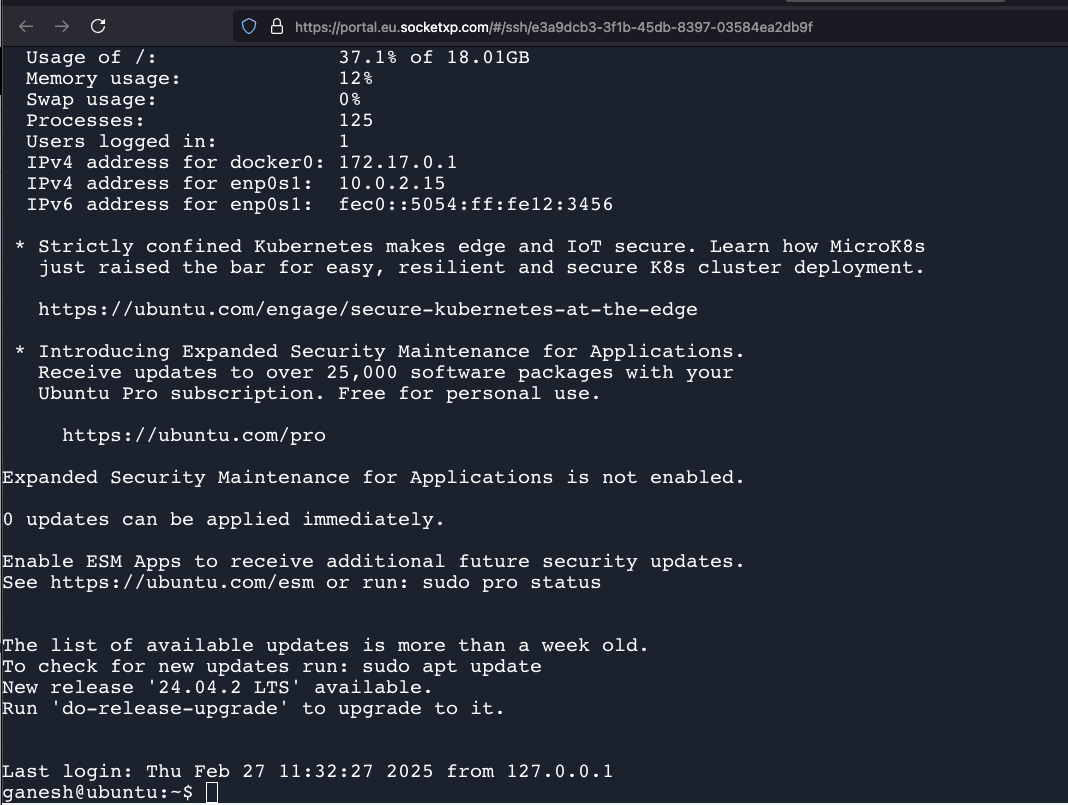
An SSH terminal opens in the browser. Enter your Raspberry Pi’s username and password. You are now in a remote shell on your Pi — from your phone, over any network.
Mobile browser SSH tips:
- Use a Bluetooth keyboard (Apple Magic Keyboard, Samsung DeX keyboard) for extended terminal work on a phone
- In Safari on iOS, use the Reader Mode to keep the terminal focused during long sessions
- Chrome on Android supports split-screen — keep the SocketXP terminal in one half and documentation in the other
- The SocketXP web terminal supports standard keyboard shortcuts (
Ctrl+C,Ctrl+Z, tab completion)
Method B: Termius SSH App (iOS and Android)
Termius is a premium mobile SSH client available on both iOS and Android. It provides a polished mobile terminal with features like stored host configurations, SSH key management, and connection grouping.
Setting up Termius with SocketXP requires the SocketXP slave mode proxy running on a computer that is accessible from your phone. The most common setup is:
- Run SocketXP slave mode on a laptop connected to the same WiFi as your phone:
$ socketxp connect tcp://localhost:3000 \
    --iot-slave \
    --peer-device-id "your-raspberry-pi-device-id" \
    --peer-device-port 22 \
    --authtoken your-auth-token

Listening for TCP connections at:
Local URL -> tcp://localhost:3000
- In Termius on your phone, add a new host:
- Hostname: your laptop’s local IP (e.g.,
192.168.1.10) - Port:
3000 - Username:
pi - Password or SSH key: your Raspberry Pi credentials
- Hostname: your laptop’s local IP (e.g.,
Termius connects to your laptop’s SocketXP proxy, which tunnels the connection to the Pi.
For fully mobile access without a laptop relay, the SocketXP web terminal (Method A) is the better choice.
Method C: JuiceSSH (Android)
JuiceSSH is a popular Android SSH client that supports SSH tunnels and key-based authentication.
Configure it the same way as Termius — connect to the SocketXP slave mode proxy on your laptop’s local IP, port 3000. JuiceSSH handles the rest.
Why SocketXP Scales from One Pi to 10,000 IoT Devices
Unlike VPN mesh tools designed for small private networks, SocketXP is architected as a lightweight, cloud-native IoT Remote Access and Device Management platform built to handle tens of thousands of concurrent device connections.
| Capability | Tailscale / Mesh VPN | SocketXP |
|---|---|---|
| Access from mobile browser | No — requires VPN app | Yes — web terminal in any browser |
| Install on access device | Required (VPN client) | Optional (slave mode only) |
| Scales to 10,000+ devices | Mesh becomes complex | Native multi-tenant IoT architecture |
| IoT fleet management portal | No | Yes — device list, status, SSH, OTA |
| Battery impact on mobile | High (always-on VPN) | None — web terminal, no VPN client |
| Works on any mobile network | Yes (via DERP relays) | Yes (native outbound tunnel) |
| OTA firmware updates | No | Yes |
| Resource monitoring | No | Yes |
The SocketXP agent itself is a minimal userspace binary — it consumes negligible CPU and memory on embedded Linux devices like Raspberry Pi Zero W, making it suitable for constrained devices where a full VPN stack would be impractical.
Security Best Practices for Mobile Access
- Enable SocketXP portal two-factor authentication (2FA) to protect access from your mobile login — unauthorized phone access to the portal would otherwise allow SSH into your Pi
- Use SSH key authentication on the Pi (not just passwords) to prevent brute-force attacks; keys are used even through the SocketXP web terminal
- Use SocketXP RBAC to restrict which accounts can SSH into which Pi devices — useful when multiple team members share mobile access
- Set session timeouts in the SocketXP portal to auto-disconnect idle mobile SSH sessions
- Avoid accessing the SocketXP portal over public WiFi without HTTPS — the portal enforces HTTPS, but verify the certificate on untrusted networks
- Log out of the SocketXP portal on shared or borrowed devices after completing a mobile SSH session
Conclusion
Accessing your Raspberry Pi from an iPhone or Android phone is straightforward with SocketXP. The SocketXP web terminal — available in any mobile browser without app installation — provides instant SSH access to your Pi from anywhere, over any mobile network, without a VPN client draining your battery or conflicting with device management policies.
For engineers managing large Pi deployments, SocketXP’s platform scales to tens of thousands of devices with centralized fleet management, device health monitoring, OTA updates, and granular RBAC — capabilities that no mobile VPN mesh tool provides. Mobile SSH access is just the entry point.
For the complete Raspberry Pi remote access solution — SSH, VNC, web apps, headless setup, Windows, and Mac — see the full SocketXP solution page.
Frequently Asked Questions
Can I SSH into my Raspberry Pi from my iPhone without any app?
Yes. Open Safari on your iPhone and go to portal.socketxp.com. Log in, navigate to Devices, find your Raspberry Pi, and tap the terminal icon. SocketXP's web terminal provides a full SSH session directly in the Safari browser — no SSH app required.
Can I SSH into Raspberry Pi from Android without installing an app?
Yes. Open Chrome on your Android phone and go to portal.socketxp.com. Log in, navigate to Devices, and tap the terminal icon next to your Raspberry Pi. The SocketXP web terminal works in Chrome on Android without any app installation.
Which SSH apps work with SocketXP for Raspberry Pi access on mobile?
Termius (iOS and Android) is the most feature-complete mobile SSH client and works when connected to the same local network as a laptop running SocketXP in slave mode. For fully mobile-native access without a laptop relay, the SocketXP web terminal in your mobile browser is the simplest approach.
Does mobile Raspberry Pi access work over 4G or 5G cellular?
Yes. SocketXP's outbound tunnel on the Raspberry Pi works regardless of the access device's network. You can SSH into your Pi via the SocketXP web terminal over 4G, 5G, or any WiFi network on your iPhone or Android phone.