
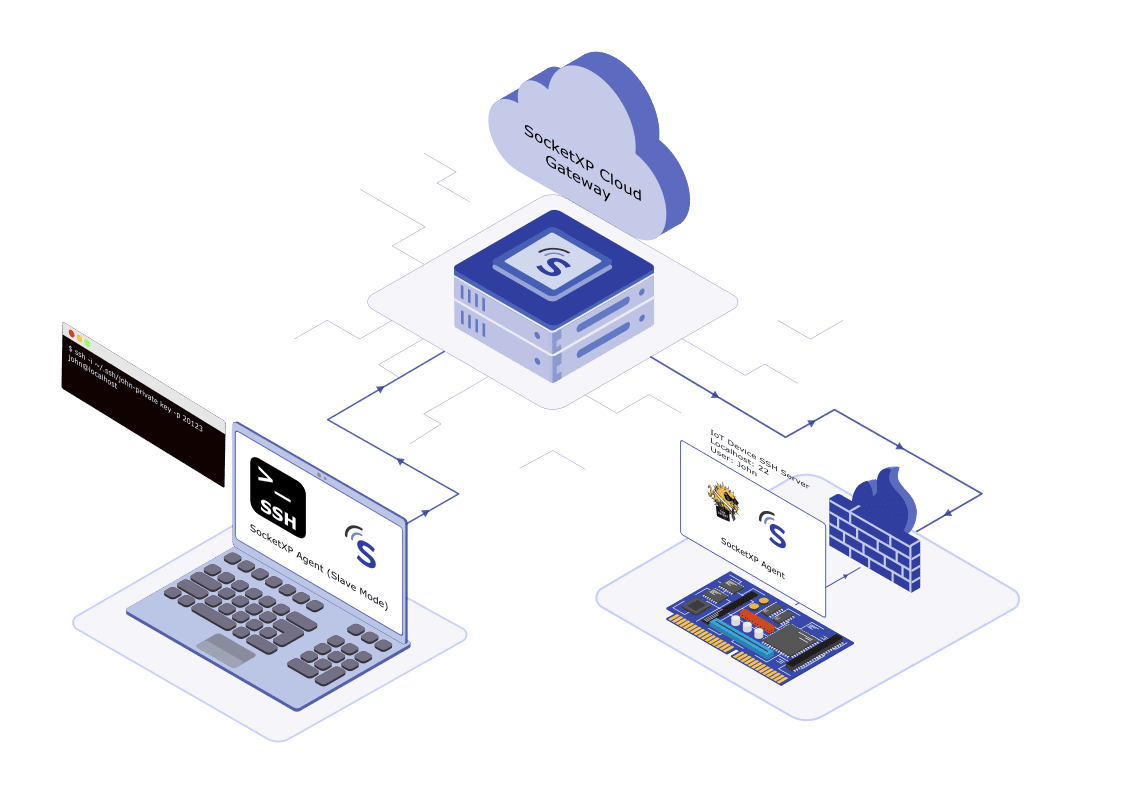
macOS is one of the most common development environments for Raspberry Pi projects — engineers write code on their Mac and deploy to a Pi. Raspberry Pi remote access from a Mac is a frequent need, but when the Pi is not on the same local network (it’s in a remote lab, in the field, or at home while you’re in the office), direct SSH from the Mac Terminal fails: the Pi’s private IP is not routable over the internet, and port forwarding either isn’t possible (CGNAT) or creates unacceptable security exposure.
SSH from Mac to Raspberry Pi in 3 steps:
- On the Pi: install SocketXP agent and run
socketxp connect tcp://localhost:22 - On Mac: either open the SocketXP web portal in Safari/Chrome for instant browser SSH, or install SocketXP for macOS in slave mode to create a local proxy at
localhost:3000 - Connect: run
ssh pi@localhost -p 3000in Terminal — or use the browser terminal without installing anything on your Mac
No port forwarding, no static IP, no VPN client to manage.
Why Direct SSH from Mac to Raspberry Pi Fails over the Internet
macOS Terminal’s SSH client (/usr/bin/ssh, part of OpenSSH) requires a routable IP address and an open TCP port 22. From outside the Pi’s local network:
- The Pi’s private IP (
192.168.x.xor10.x.x.x) is not accessible from the internet - The router’s public IP may change or may not exist (CGNAT from mobile ISPs)
- Opening port 22 on the router’s NAT exposes the SSH service to automated brute-force bots that continuously scan the internet for open SSH ports
- Corporate Mac environments may have outbound firewall rules that block custom ports
SocketXP solves this with a secure reverse proxy tunnel: the Pi initiates an outbound TLS connection to the SocketXP cloud gateway over port 9443 or optionally, port 80. Your Mac connects inward through that existing tunnel. No inbound port is ever opened.
Step 1: Enable SSH on Your Raspberry Pi
sudo raspi-config
# Navigate to: Interface Options > SSH > Enable
Or directly:
sudo systemctl enable ssh
sudo systemctl start ssh
sudo systemctl status ssh
Step 2: Install the SocketXP Agent on Your Raspberry Pi
Step 2.1: Download and Install
Follow the download and install instructions to install the SocketXP agent on your Raspberry Pi. The agent provides arm (32-bit) and arm64 (64-bit) binaries for all Pi models.
Step 2.2: Get Your Authentication Token
Sign up at the SocketXP Web Portal and retrieve your authentication token.
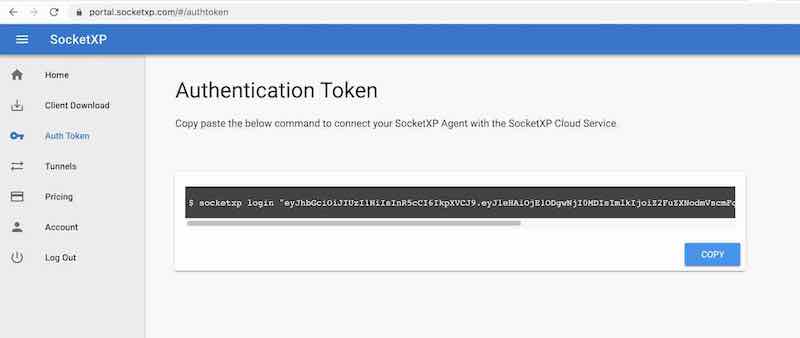
Authenticate:
$ socketxp login [your-auth-token-goes-here]
Step 2.3: Create the SSH Tunnel
$ socketxp connect tcp://localhost:22

Connected to SocketXP Cloud Gateway.
Access the device securely using the SocketXP agent in IoT Slave Mode.
Your Pi now appears in the SocketXP portal Devices list.
Step 3: Connect from Your Mac
Method A: SocketXP Web Terminal in Browser (Easiest — No Mac Install)
Open Safari, Chrome, or Firefox on your Mac and log into the SocketXP Web Portal.
Go to Devices, find your Raspberry Pi, and click the terminal icon.
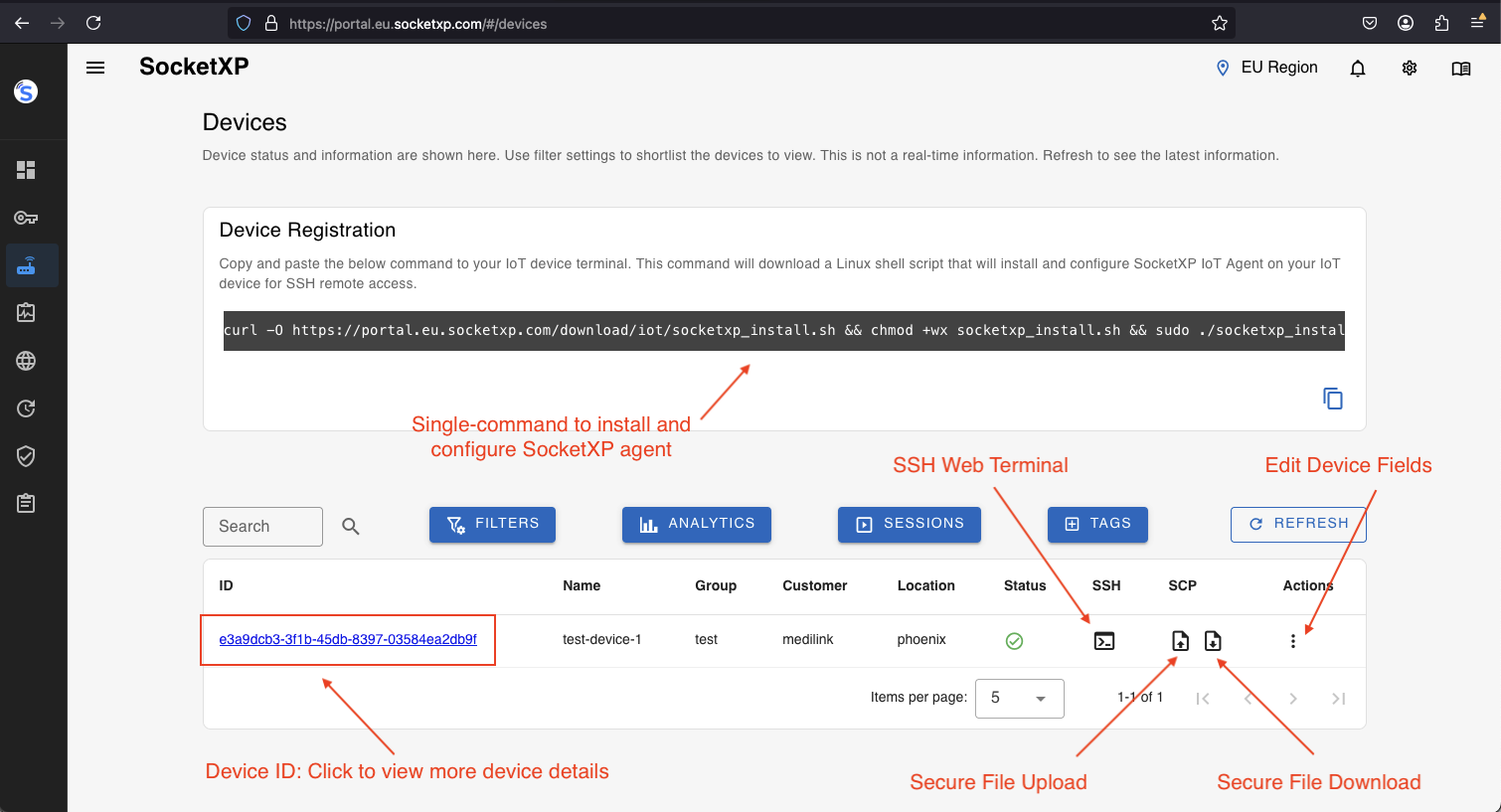
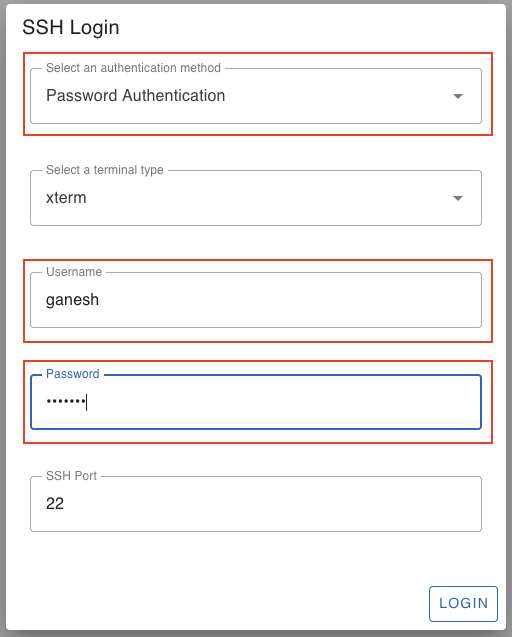
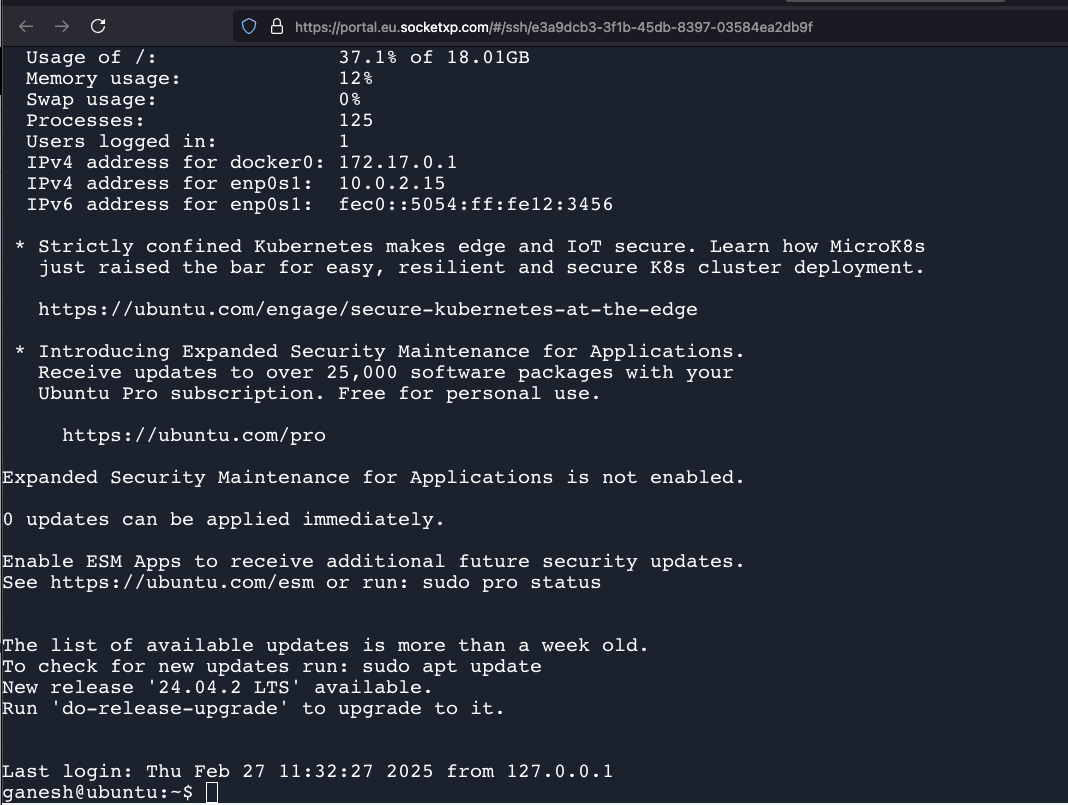
Enter your Pi’s username and password. You’re in an SSH shell directly in your browser — no additional software needed on the Mac.
Method B: macOS Terminal via SocketXP Slave Mode
For a native macOS Terminal experience, install SocketXP for Mac and create a local SSH proxy.
Step B.1: Download SocketXP for macOS
Download the SocketXP agent for macOS from socketxp.com/download. Both Apple Silicon (arm64) and Intel (amd64) builds are available.
Step B.2: Run SocketXP in Slave Mode
$ socketxp connect tcp://localhost:3000 \
    --iot-slave \
    --peer-device-id "your-raspberry-pi-device-id" \
    --peer-device-port 22 \
    --authtoken your-auth-token

Listening for TCP connections at:
Local URL -> tcp://localhost:3000
Find your Pi’s device ID in the SocketXP portal under Devices.
Step B.3: SSH from macOS Terminal
Open Terminal (or iTerm2) and connect:
$ ssh pi@localhost -p 3000
The authenticity of host '[localhost]:3000 ([127.0.0.1]:3000)' can't be established.
ED25519 key fingerprint is SHA256:xxxxxxxxxxxx.
Are you sure you want to continue connecting (yes/no/[fingerprint])? yes

pi@raspberrypi:~ $
For SSH key authentication (recommended):
$ ssh -i ~/.ssh/id_rsa pi@localhost -p 3000
pi@raspberrypi:~ $
macOS Screen Sharing (VNC) to Raspberry Pi via SocketXP
To access the Raspberry Pi desktop GUI from your Mac via VNC:
- Enable VNC on the Pi (
sudo raspi-config→ Interface Options → VNC) - Run SocketXP slave mode on your Mac, pointing to the Pi’s VNC port 5900:
$ socketxp connect tcp://localhost:10000 \
    --iot-slave \
    --peer-device-id "your-raspberry-pi-device-id" \
    --peer-device-port 5900 \
    --authtoken your-auth-token

Listening for TCP connections at:
Local URL -> tcp://localhost:10000
- In Finder, press
⌘K(Go → Connect to Server), entervnc://localhost:10000, and click Connect
macOS Screen Sharing opens, showing your Raspberry Pi’s full desktop environment.
File Transfer from Mac to Raspberry Pi
Using SCP from Terminal
With SocketXP slave mode running on port 3000:
# Upload a file from Mac to Pi
$ scp -P 3000 ~/path/to/localfile.py pi@localhost:/home/pi/scripts/

# Download a file from Pi to Mac
$ scp -P 3000 pi@localhost:/home/pi/logs/app.log ~/Downloads/
Using Cyberduck (SFTP GUI)
In Cyberduck, create a new SFTP connection:
- Server:
localhost - Port:
3000 - Username:
pi - SSH Private Key:
~/.ssh/id_rsa(or password)
Drag and drop files between your Mac and the Pi using the Cyberduck file browser.
Why SocketXP Outperforms VPNs like Tailscale for Raspberry Pi Fleets
Engineers evaluating Raspberry Pi remote access tools often compare SocketXP against VPN mesh solutions like Tailscale or ZeroTier. The distinction matters significantly at scale:
| Criterion | Tailscale / Mesh VPN | SocketXP |
|---|---|---|
| Architecture | Peer-to-peer mesh VPN | Secure reverse proxy tunnel |
| Network reconfiguration | Requires installing VPN client on every access device | Access via browser (no client) or lightweight agent |
| Scale | Designed for private networks; mesh becomes complex at thousands of nodes | Purpose-built for IoT fleets of 10,000+ devices |
| IoT-specific features | None — general-purpose VPN | SSH, VNC, HTTP tunnels, OTA updates, device monitoring, RBAC |
| Agent resource footprint | Higher — mesh VPN kernel module | Minimal — lightweight userspace binary |
| Works behind CGNAT | Yes (with DERP relay servers) | Yes (native outbound tunnel) |
| Browser SSH terminal | No | Yes — built into portal |
| Fleet management portal | No | Yes — device list, online/offline status, remote access |
SocketXP is not just a tunnel tool — it is a complete IoT Remote Access and Device Management platform built to manage, monitor, and remotely access tens of thousands of Raspberry Pi devices from a single portal, with granular RBAC and zero network reconfiguration on the access side.
SSH Key Setup: Mac to Raspberry Pi
Eliminate password prompts by setting up SSH key authentication:
Generate a key pair on your Mac:
$ ssh-keygen -t ed25519 -C "your-email@example.com"
# Saves to ~/.ssh/id_ed25519 (private) and ~/.ssh/id_ed25519.pub (public)
Copy the public key to your Raspberry Pi (with slave mode proxy on port 3000):
$ ssh-copy-id -i ~/.ssh/id_ed25519.pub -p 3000 pi@localhost
Disable password authentication on the Pi:
# On the Raspberry Pi:
$ sudo nano /etc/ssh/sshd_config
# Set: PasswordAuthentication no
$ sudo systemctl restart ssh
Security Best Practices
- Use Ed25519 SSH keys from your Mac — they are faster and more secure than RSA-4096 while producing shorter key material
- Disable SSH password authentication on the Pi once keys are configured
- Use SocketXP RBAC to restrict which Mac users can access which Pi devices
- Add your Mac’s SSH key fingerprints to
known_hoststo detect MITM attacks; the SocketXP tunnel adds TLS encryption as an additional layer - Run SocketXP as a systemd service on the Pi (
sudo systemctl enable socketxp) for persistent tunnel recovery after reboots
Conclusion
Accessing your Raspberry Pi from a Mac over the internet is straightforward with SocketXP. The SocketXP web terminal provides instant, zero-install SSH access via any browser on macOS. For engineers who prefer native macOS Terminal, the SocketXP slave mode agent creates a local proxy that works with ssh, scp, rsync, Cyberduck, and any other SSH-compatible Mac tool.
Unlike mesh VPNs such as Tailscale, SocketXP is purpose-built for IoT fleet management — giving you not just remote access but also centralized device monitoring, OTA update delivery, and fine-grained access control, all scaling to tens of thousands of Raspberry Pi and embedded Linux devices without network-level reconfiguration.
For all Raspberry Pi remote access options — SSH, VNC, web apps, headless setup, Windows, and mobile — see the complete SocketXP solution page.
Frequently Asked Questions
How do I SSH into a Raspberry Pi from Mac over the internet?
Install the SocketXP agent on your Raspberry Pi (run 'socketxp connect tcp://localhost:22'), then either use the SocketXP web terminal in Safari or Chrome on your Mac—no software needed—or install SocketXP for macOS in slave mode and run 'ssh pi@localhost -p 3000' from Terminal.
Do I need to install any software on my Mac to access Raspberry Pi with SocketXP?
Not necessarily. The SocketXP web terminal works in any browser on macOS, so you can SSH into your Pi without installing anything on your Mac. For a native Terminal experience, download the SocketXP agent for macOS (Apple Silicon or Intel) and run it in slave mode.
Can I use macOS Screen Sharing (VNC) to access Raspberry Pi via SocketXP?
Yes. With SocketXP slave mode running on your Mac pointing to the Pi's VNC port (5900), open Finder > Go > Connect to Server, enter 'vnc://localhost:10000', and connect. You'll see the Raspberry Pi desktop in macOS Screen Sharing.
Can I use Cyberduck or Transmit to transfer files to Raspberry Pi from Mac?
Yes. Both Cyberduck (free) and Transmit support SFTP connections. Set the server to 'localhost', port to the SocketXP slave mode proxy port (e.g., 3000), and protocol to SFTP. The connection is tunneled securely to your Raspberry Pi.