
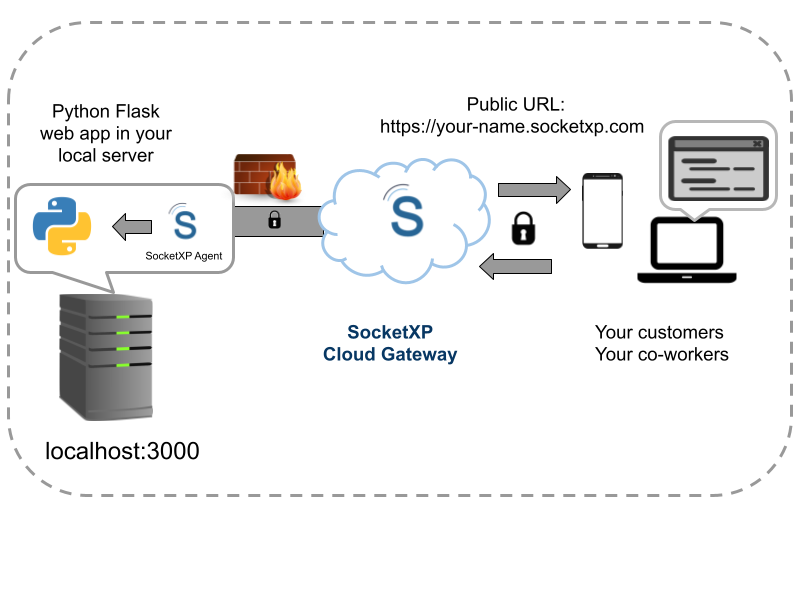
Modern AI and machine learning workflows rely on a growing ecosystem of web-based tools for experiment tracking, model visualization, and interactive demos:
- TensorBoard: Visualize training metrics, model graphs, and embeddings.
- Gradio: Build and share interactive ML demos in Python with a web interface.
- MLflow: Track experiments, compare model runs, and manage the ML lifecycle.
All of these tools run a local web server on your machine. The problem: the moment you want to access them from a different machine—your laptop, a colleague’s browser, or a client’s computer—they are unreachable because they listen only on localhost.
This guide shows how to use SocketXP Remote Access Solution to create a permanent, secure public HTTPS URL for any of these tools with a single command—from any browser, anywhere.
How SocketXP Remote Access Works for AI Dev Tools
Every AI development tool described in this article runs an HTTP server on localhost. SocketXP installs a lightweight agent on the same machine and creates an outbound SSL/TLS tunnel to the SocketXP Cloud Gateway. SocketXP assigns a permanent public HTTPS URL to that tunnel—any browser request to the URL is securely forwarded to the local tool.
Because the agent makes an outbound connection, no router configuration or firewall rule changes are needed. This works from a home lab server, a cloud VM in a private subnet, a university GPU machine, or any Linux machine.
Remote Access to TensorBoard
TensorBoard (default port: 6006) is the standard tool for visualizing neural network training: loss curves, accuracy over epochs, model architecture graphs, and more.
Start TensorBoard on your remote GPU server or training machine:
$ tensorboard --logdir=./logs --port=6006
TensorBoard 2.x at http://localhost:6006/ (Press CTRL+C to quit)
Install and authenticate the SocketXP agent (one-time setup):
$ socketxp login "eyJhbGciOiJIUzI1NiIsInR5cCI6IkpXVCJ9..."
Create the HTTPS tunnel:
$ socketxp connect http://localhost:6006

Public URL -> https://your-user-id-abc123.socketxp.com
Open https://your-user-id-abc123.socketxp.com in any browser to view your TensorBoard dashboard from anywhere.
Tip: If you run multiple training experiments simultaneously on different log directories, start each on a different port (--port=6007, --port=6008) and create separate SocketXP tunnels for each.
Remote Access to Gradio Apps
Gradio (default port: 7860) lets you build interactive demos for ML models—input fields, image uploaders, sliders, and output displays—in a few lines of Python.
Run your Gradio app:
$ python app.py
Running on local URL: http://127.0.0.1:7860
Create the HTTPS tunnel:
$ socketxp connect http://localhost:7860

Public URL -> https://your-user-id-abc123.socketxp.com
Share the public URL with anyone. They can interact with your model demo directly in their browser—no installation required on their end.
Note: Gradio has a built-in share=True parameter that creates a temporary public URL via Gradio’s own service. The difference with SocketXP is that the URL is permanent, the model stays on your own machine, and the tunnel persists after the Gradio process restarts.
Remote Access to MLflow Tracking UI
MLflow (default port: 5000) tracks machine learning experiments: parameters, metrics, artifacts, and model registry.
Start the MLflow UI:
$ mlflow ui --port 5000
[INFO] Starting gunicorn 21.x.x
[INFO] Listening at: http://127.0.0.1:5000
Create the HTTPS tunnel:
$ socketxp connect http://localhost:5000

Public URL -> https://your-user-id-abc123.socketxp.com
Your team can now view all experiment runs, compare metrics across runs, and download registered model artifacts—from any browser.
Other AI/ML Tools You Can Access Remotely
The same pattern works for any tool with a local web server:
| Tool | Default Port | SocketXP Command |
|---|---|---|
| TensorBoard | 6006 | socketxp connect http://localhost:6006 |
| Gradio | 7860 | socketxp connect http://localhost:7860 |
| MLflow UI | 5000 | socketxp connect http://localhost:5000 |
| Jupyter Notebook | 8888 | socketxp connect http://localhost:8888 |
| Label Studio | 8080 | socketxp connect http://localhost:8080 |
| Streamlit app | 8501 | socketxp connect http://localhost:8501 |
| FastAPI docs | 8000 | socketxp connect http://localhost:8000 |
| Ray Dashboard | 8265 | socketxp connect http://localhost:8265 |
| Kubeflow Pipelines UI | 8080 | socketxp connect http://localhost:8080 |
Keeping Tunnels Alive Permanently
To keep your tunnels running after terminal sessions close or after machine reboots, configure the SocketXP agent as a systemd service. See the SocketXP Getting Started guide for service configuration. Once set up, the tunnel restarts automatically with the machine and your public URLs remain accessible.
Running Multiple Tunnels
If you need to expose multiple tools simultaneously—for example, TensorBoard and MLflow at the same time—run a separate socketxp connect command for each port. Each gets its own permanent public URL.
# Terminal 1 — TensorBoard tunnel
$ socketxp connect http://localhost:6006
Public URL -> https://user-abc.socketxp.com

# Terminal 2 — MLflow tunnel
$ socketxp connect http://localhost:5000
Public URL -> https://user-def.socketxp.com
Security Considerations
SocketXP’s public HTTPS URLs are accessible to anyone who knows them. For tools like TensorBoard and MLflow (which are typically read-only dashboards), sharing the URL with trusted team members is sufficient.
If your tool handles sensitive data or allows write operations, consider:
- Keeping the URL private within your team.
- Using a tool that has its own authentication (MLflow Enterprise, for example, supports authentication).
- Running an authenticated nginx reverse proxy in front of the tool on a different local port, then tunneling that port instead.
All traffic between the user’s browser and your machine is encrypted in transit by SocketXP’s SSL/TLS tunnel.
Why SocketXP vs SSH Port Forwarding for AI Tools?
SSH port forwarding (ssh -L 6006:localhost:6006 user@server) works but has limitations:
- Requires an active SSH session—if it drops, the tunnel drops.
- Requires your laptop to already have SSH access to the server.
- Does not produce a shareable URL that colleagues can open in their browser.
- Does not work if you only have access via the SocketXP portal (no direct SSH access from your current network).
SocketXP gives each tool a permanent, bookmarkable URL that works from any device without needing an ongoing SSH session.
Conclusion
TensorBoard, Gradio, MLflow, and every other AI development tool that runs a local web server can be made remotely accessible with a single SocketXP command: socketxp connect http://localhost:<port>. The permanent public URL works from any browser, anywhere—no port forwarding, no VPN, no router configuration.
For more on SocketXP’s remote access capabilities, visit the SocketXP IoT Remote Access page or explore related guides:
- Remote Access Jupyter Notebook from Anywhere
- Remote Access Ollama from Anywhere
- Remote SSH into a GPU Server
Frequently Asked Questions
Can I access TensorBoard running on a remote GPU server from my laptop?
Yes. Start TensorBoard on the GPU server with 'tensorboard --logdir=./logs --port=6006', then run 'socketxp connect http://localhost:6006' on the same machine. SocketXP gives you a permanent public HTTPS URL you can open in any browser from anywhere.
How do I share a Gradio demo with someone without deploying to Hugging Face Spaces?
Run your Gradio app on your own machine, then create a SocketXP HTTPS tunnel to Gradio's port (7860 by default): 'socketxp connect http://localhost:7860'. Share the public URL with anyone—they can access your Gradio demo in their browser without you deploying to any cloud platform.
Can I access MLflow experiment tracking UI from a different machine?
Yes. Start MLflow with 'mlflow ui --port 5000' on your server, then run 'socketxp connect http://localhost:5000'. The permanent public URL lets you view experiment runs, compare metrics, and download artifacts from any browser.
Does the SocketXP public URL stay the same between sessions?
Yes. The public HTTPS URL SocketXP assigns is permanent—it does not change between sessions or restarts as long as the tunnel is configured. You can bookmark it or use it in shared documentation.
Can multiple team members access the same TensorBoard or MLflow server?
Yes. Share the SocketXP public URL with your team. Each person opens it in their browser. TensorBoard and MLflow are read-only dashboards, so simultaneous access by multiple users is safe and does not conflict.
Does this work for other AI tools like Label Studio, DVC, or Weights and Biases local server?
Yes. Any tool that exposes a web interface on a local port can be tunneled through SocketXP using 'socketxp connect http://localhost:
'. Label Studio (port 8080), a local Weights and Biases server, or any custom dashboard follows the same pattern. How do I share a Streamlit machine learning app remotely without deploying to the cloud?
Run your Streamlit app locally with 'streamlit run app.py' (default port 8501), then create a SocketXP tunnel: 'socketxp connect http://localhost:8501'. Share the public URL with anyone—they can interact with your Streamlit app from a browser without you deploying to Streamlit Cloud or any other cloud platform.
Can I access a remote Ray dashboard or Ray Serve API using SocketXP?
Yes. The Ray dashboard runs on port 8265 by default. Tunnel it with 'socketxp connect http://localhost:8265' to view job status, resource utilization, and actor information from any browser. For Ray Serve inference APIs (port 8000 by default), use the same method to expose the API endpoint publicly.
How do I access MLflow model artifacts or download registered models remotely?
Start the MLflow tracking server locally and create a SocketXP tunnel to its port. Through the public URL you can view the model registry, compare experiments, and download artifacts directly from the MLflow UI in your browser. For programmatic artifact access, point your MLflow client's tracking URI to the SocketXP URL.
Can I run TensorBoard and Jupyter at the same time and access both remotely?
Yes. Run each on a different port, then create a separate SocketXP tunnel for each. For example: 'socketxp connect http://localhost:8888' for Jupyter and 'socketxp connect http://localhost:6006' for TensorBoard. Each gets its own permanent public URL that you can open in separate browser tabs simultaneously.
How do I password-protect my remote TensorBoard or Gradio app?
TensorBoard and basic Gradio apps do not have built-in authentication. To protect them, run an nginx reverse proxy locally in front of the tool with HTTP basic auth configured, and then tunnel the nginx port with SocketXP instead of the tool's direct port. Alternatively, for Gradio, pass auth=('username', 'password') to the launch() call to enable built-in basic authentication.