
How to Remotely SSH into an NVIDIA Jetson Behind CGNAT or a Strict Corporate Firewall
Deploying edge AI workloads on NVIDIA Jetson modules — Nano, Xavier, or Orin — often means placing devices in network environments you do not control: cellular uplinks behind Carrier-Grade NAT (CGNAT), customer intranets with restrictive egress policies, or factory segments with no inbound routing at all.
Traditional SSH breaks in all of these environments. This guide explains why, and walks through a production-ready solution using SocketXP’s outbound reverse tunnel — no port forwarding, no static IP, no VPN concentrator. For a broader overview of IoT remote access options, see the SocketXP IoT Remote Access solution page.
Why CGNAT Breaks Traditional SSH
Traditional SSH relies on an inbound connection: your client sends a TCP SYN packet directly to the device’s public IP on port 22. Under CGNAT, a single public IP is shared dynamically across thousands of cellular endpoints. Because your Jetson lacks a dedicated public IP, inbound traffic hits the carrier’s edge router and is dropped before it reaches the device.
[SSH Client] ---> Internet ---> [CGNAT / Corporate Firewall (Packet Dropped)] -X-> [NVIDIA Jetson]
The same structural problem applies behind corporate firewalls: IT controls all ingress rules, and getting an inbound pinhole opened is a multi-week change-control process that breaks the moment policy is updated.
Some teams turn to legacy mesh VPNs to work around this. However, traditional VPN stacks introduce protocol overhead, add kernel-level complexity, and consume CPU cycles that resource-constrained Jetson modules need for inference workloads. See Remote Access in a Post-VPN World for a detailed comparison of VPN vs. secure tunneling for IoT.
The SocketXP Approach: Outbound Reverse Tunnel
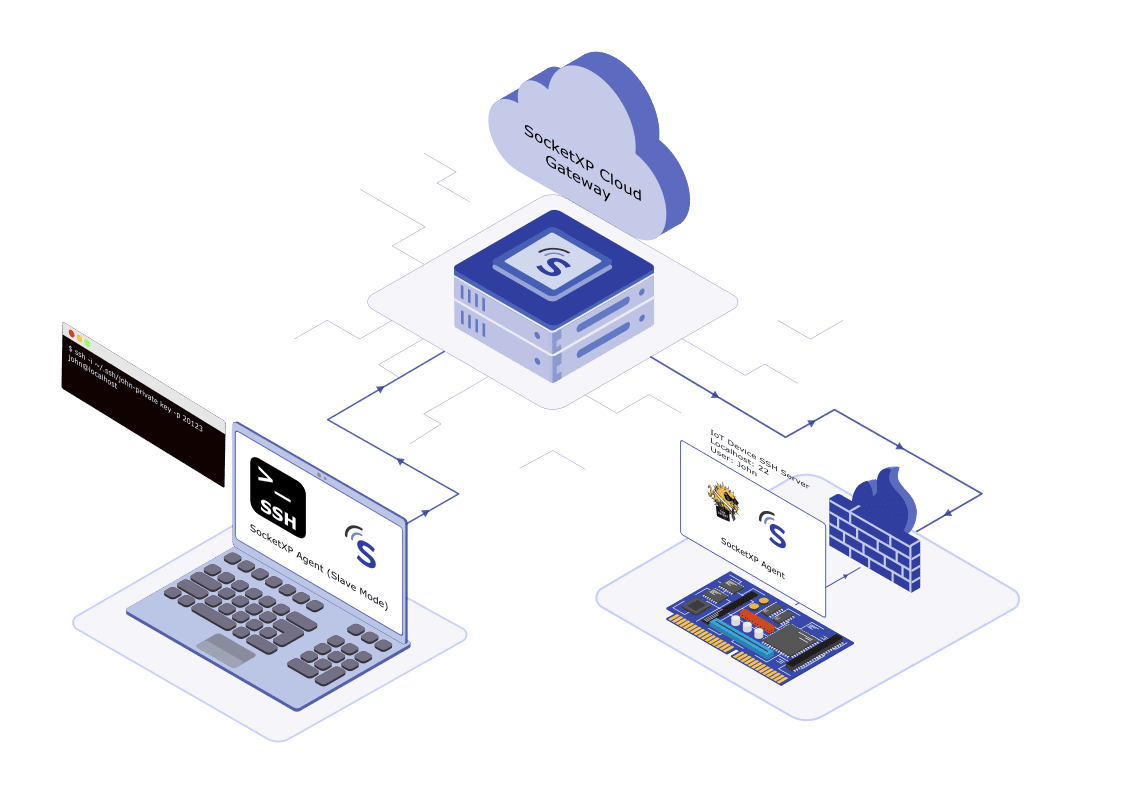
SocketXP inverts the connection direction. The SocketXP agent on the Jetson initiates an outbound SSL/TLS connection to the SocketXP cloud gateway. Because this originates from inside the private network, it passes through CGNAT and corporate firewalls without any configuration change.
[NVIDIA Jetson (SocketXP Agent)] ---> Outbound SSL/TLS Tunnel ---> [CGNAT / Corporate Firewall (Packet Allowed)] ---> Internet ---> [SocketXP Cloud Gateway] <--- Internet <--- [Engineer]
Your engineers connect to the gateway endpoint. The gateway routes the session through the existing tunnel to the Jetson. No inbound port is ever opened on the device’s network.
Step-by-Step Setup
Below, we show you a simple 3-step process to quickly remote access your Nvidia Jetson behind a CGNAT.
Please refer to our IoT SSH Remote Access Solution blog article for more detailed instructions.
Step 1: Install the Agent and Authenticate the Node
Pull the ARM64 binary onto your Jetson, make it executable, and move it to your system path:
curl -LO https://portal.socketxp.com/download/linux/arm64/socketxp
chmod +wx socketxp
sudo mv socketxp /usr/local/bin
Authenticate the device using the auth token from your SocketXP web portal:
socketxp login "YOUR_SECRET_AUTH_TOKEN" --iot-device-name "jetson-orin-edge-01"
Step 2: Create the Tunnel Configuration File
Create the config directory and write the tunnel specification pointing to the local SSH daemon:
sudo mkdir -p /etc/socketxp
Create /etc/socketxp/config.json:
{
  "tunnels": [
    {
      "destination": "tcp://127.0.0.1:22"
    }
  ]
}
Step 3: Install and Enable the Systemd Service
Register the agent as a systemd service so it survives reboots and power cycles:
sudo socketxp service install --config /etc/socketxp/config.json
sudo systemctl enable socketxp
sudo systemctl start socketxp
Confirm the tunnel is active:
sudo systemctl status socketxp
Check the SocketXP agent log file for any errors:
cat /var/lib/socketxp/socketxp.log
If you run into any problems, refer to our troubleshooting guide: https://docs.socketxp.com/guide/troubleshooting-guide/
Connecting to the Jetson Remotely
Once the agent registers with the gateway, you have two access options.
Option A: Browser-Based Web Terminal
Log into the SocketXP portal, go to the “Devices” tab and locate your device in the device list, and click the terminal icon. SocketXP opens an XTERM session directly in your browser over the tunnel — no additional client setup required.
By default, the web terminal will login to your device using an automatically generated SSH key. You can also choose to Login using your device’s login username and password, by selecting the “Password Authentication” in the SSH login dialog.
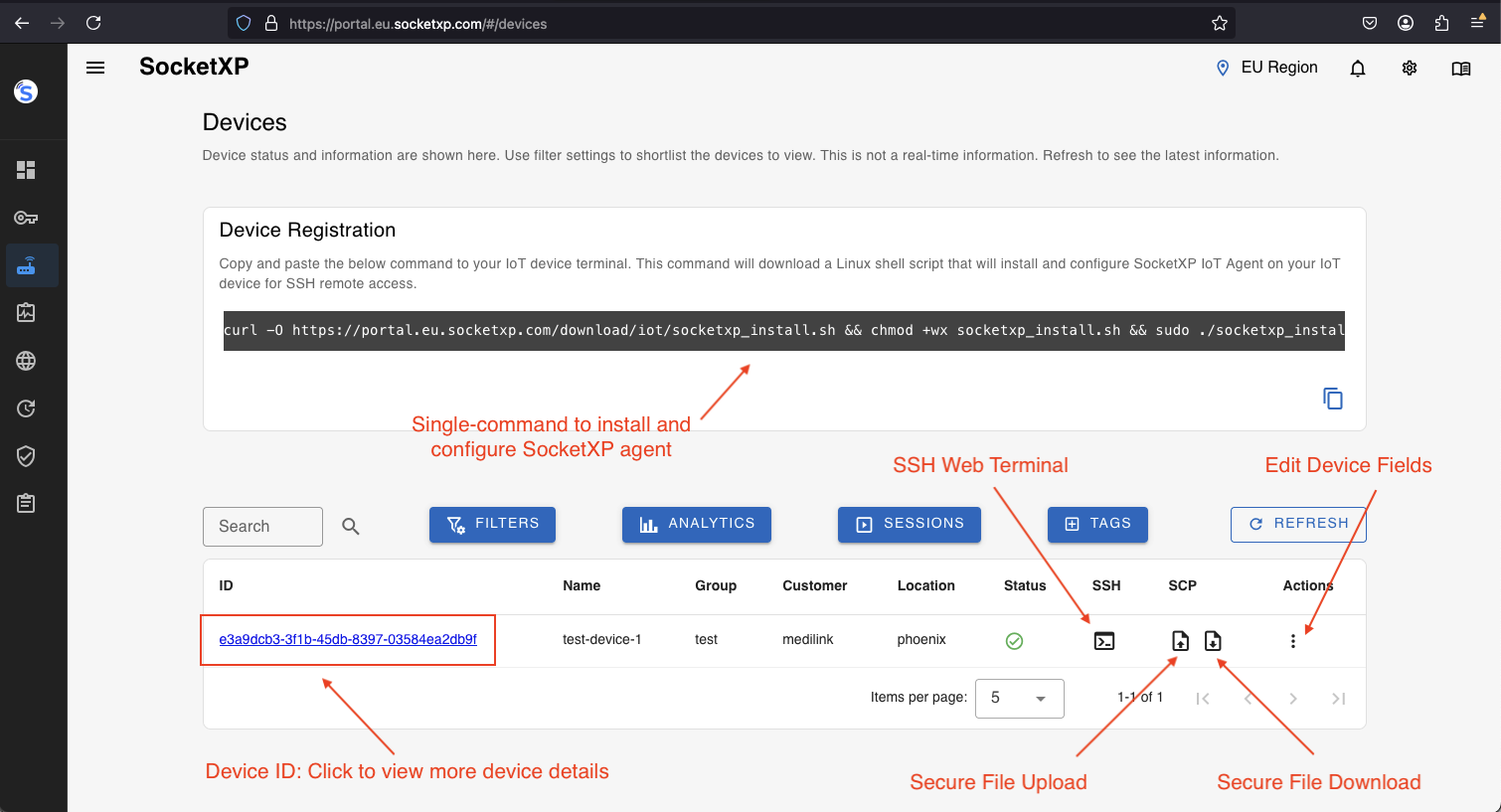
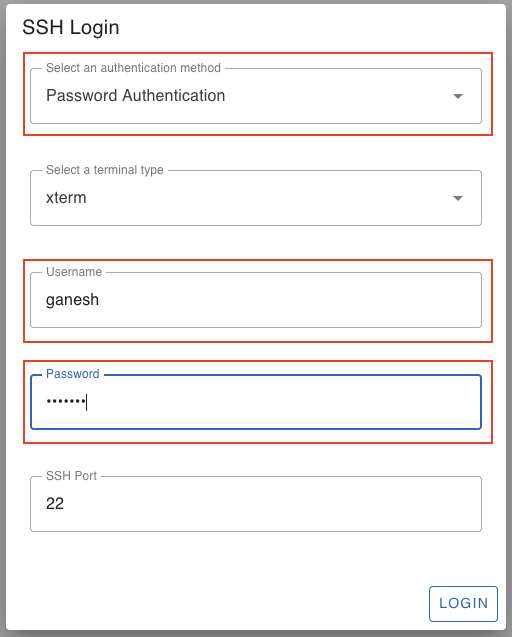
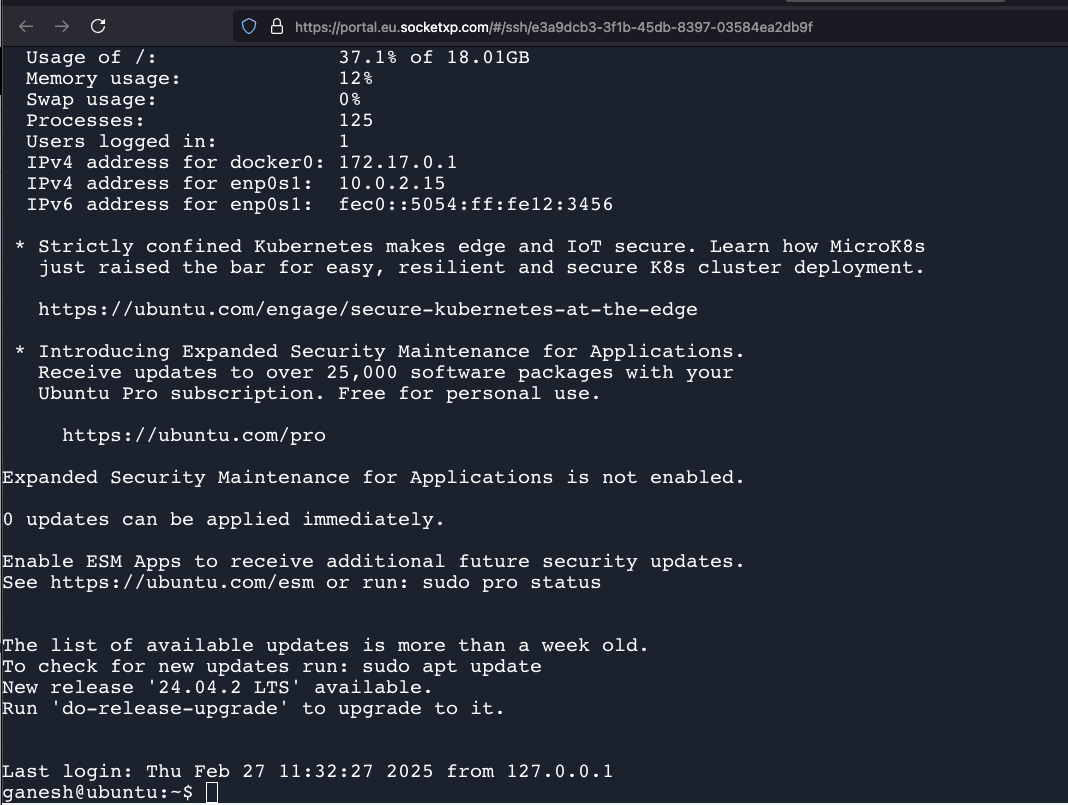
Option B: SSH Client via Local Proxy (Slave Mode)
If you prefer using your own tools — OpenSSH, PuTTY, or VS Code Remote-SSH — with your own private keys, download/install and run the SocketXP agent in slave mode on your laptop to open a local proxy port:
socketxp connect tcp://localhost:3000 \
  --iot-slave \
  --peer-device-id "YOUR_JETSON_DEVICE_ID" \
  --peer-device-port 22 \
  --authtoken "YOUR_DEVICE_ACCESS_TOKEN"
The agent confirms:
Listening for TCP connections at: Local URL -> tcp://localhost:3000
Note: You can find the device ID for your device from the web portal’s device tab.
Now SSH through the local proxy in your Laptop to reach the Jetson over the encrypted tunnel:
ssh -i ~/.ssh/id_rsa user@localhost -p 3000
Security Hardening for Production Deployments
- Disable password authentication: Set
PasswordAuthentication noin/etc/ssh/sshd_configon the Jetson. This eliminates brute-force exposure even if the loopback interface is somehow reached. See SSH Remote Access Security Best Practices for a full hardening checklist. - Protect auth tokens: Never hardcode device tokens into container images or public repositories. Use environment variables or volume-mounted runtime files during device onboarding.
- Enable mTLS for high-security tunnels: Run
socketxp ca loginon the connecting workstation to download verified client certificates and bind them to the slave mode connection lifecycle, enforcing mutual TLS authentication on both ends of the tunnel. For certificate-based SSH authentication, see How to Configure SSH Certificates.
Related Reading
- How to Remotely Access NVIDIA Jetson Orin — Jetson AGX Orin, Orin NX, and Orin Nano step-by-step guide
- How to Remotely Access NVIDIA Jetson Nano — Jetson Nano-specific setup with SSH and web app access
- IoT Remote Access for 10,000 Devices — scaling the agent tunnel architecture to large fleets
- Remote Access in a Post-VPN World — why secure tunneling outperforms legacy VPN for IoT
- SSH Remote Access Security Best Practices — full hardening guide for SSH on embedded Linux devices
Frequently Asked Questions
Can I SSH into an NVIDIA Jetson behind CGNAT without a static public IP?
Yes. The SocketXP agent on the Jetson initiates an outbound SSL/TLS connection to the SocketXP cloud gateway on port 443. Because the connection is device-initiated, no public IP or inbound port is required — the gateway provides a stable endpoint that reaches the device through the existing tunnel.
Does SocketXP support ARM64 for NVIDIA Jetson?
Yes. SocketXP provides a native ARM64 binary that runs on all NVIDIA Jetson modules — Jetson Nano, Xavier NX, AGX Xavier, Orin NX, Orin Nano, and AGX Orin — all of which use aarch64 architecture running Ubuntu via JetPack.
How do I use my own SSH keys and client instead of the browser terminal?
Run the SocketXP agent in slave mode on your laptop to open a local proxy port (e.g., 3000). Then SSH to localhost:3000 using your own key: ssh -i ~/.ssh/id_rsa user@localhost -p 3000. Your session is forwarded end-to-end through the encrypted cloud tunnel.
How do I secure the tunnel against unauthorized access?
Set PasswordAuthentication no in /etc/ssh/sshd_config on the Jetson to enforce public key authentication. Store device auth tokens in environment variables or runtime-mounted files — never hardcode them in container images or public repositories. For high-security deployments, run socketxp ca login on the connecting workstation to enable mutual TLS (mTLS) on the tunnel.